
The “Destination folder already exists” error usually means WordPress found an existing plugin folder while trying to unpack a new ZIP. That folder may belong to an already installed plugin, a failed install, an old deletion, or a manual upload.
Start in wp-admin. Only touch server files after you confirm WordPress does not already list the plugin.
Quick checks before touching files
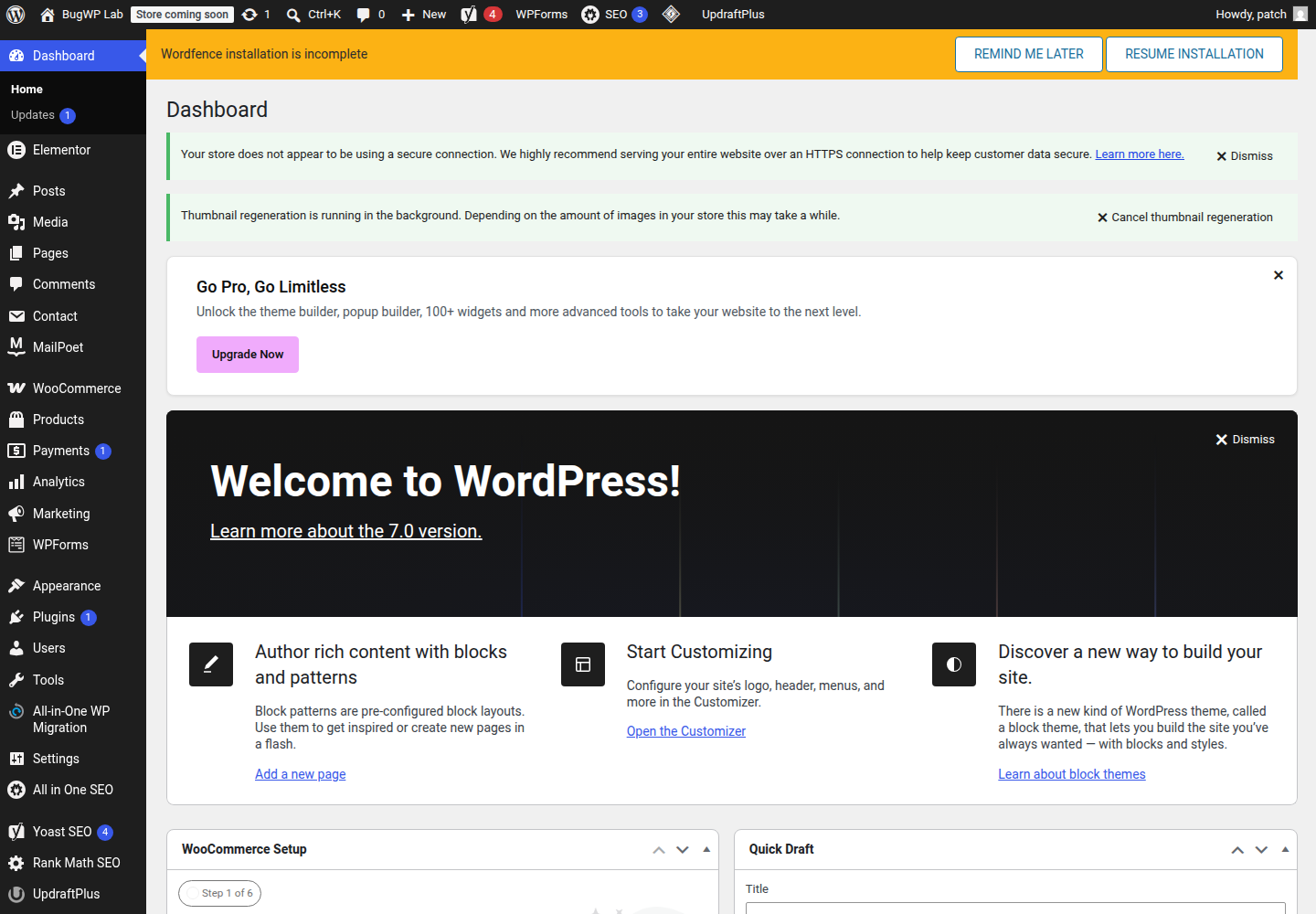
Go to Plugins > Installed Plugins and search for the plugin name.
If the plugin appears there, WordPress already sees it as installed. Use Update, Activate, or Delete from the Plugins screen instead of uploading the ZIP again. WordPress documents the normal plugin management flow in its guide to managing plugins.
If the plugin is not listed, the folder may still exist under wp-content/plugins/. That leftover folder blocks WordPress from unpacking the new ZIP into the same location.
Also confirm that you are uploading the correct ZIP file. Some plugin downloads contain documentation plus the real plugin ZIP inside. If WordPress cannot find the plugin header after upload, stop and extract the download on your computer to look for the actual installable ZIP.
Safest fix order
1. Back up or rename the existing folder
Before deleting anything, make a copy of the matching plugin folder through your hosting file manager or SFTP. WordPress has official guidance on using FTP/SFTP clients to work with site files.
Look in:
wp-content/plugins/
Find the folder whose name matches the plugin slug. For example, a plugin ZIP named example-plugin.zip usually installs into:
wp-content/plugins/example-plugin/
Download that folder to your computer, or rename it on the server to something like:
example-plugin-old
Renaming is usually safer than deleting because it preserves a quick rollback path if the new install fails.
2. Reinstall the plugin in wp-admin
Return to Plugins > Add New Plugin > Upload Plugin, choose the plugin ZIP, and install it again.
If the old folder was only a partial install, WordPress should now be able to create a clean folder and finish the installation.
3. Activate and check settings
After activation, visit the plugin’s settings screen and one page where the plugin affects the site.
Most plugin settings live in the database, not inside the plugin folder, so reinstalling the files usually does not erase settings. Still, check before removing your backup folder.
If the folder keeps coming back
Use this decision path:
- The plugin appears in wp-admin: manage it from Plugins > Installed Plugins instead of uploading the ZIP.
- The plugin does not appear, but the folder exists: rename or remove the leftover folder in
wp-content/plugins/. - The folder cannot be renamed or deleted: contact your host and ask them to fix file ownership or permissions for that plugin directory.
- The same error happens with many plugins: this is likely a hosting file permission, disk space, or security rule issue, not one bad plugin ZIP.
- The site breaks after renaming the old folder: rename it back, then check the site’s error logs or ask the plugin vendor or host to inspect the failure.
Optional SSH check with WP-CLI
Skip this section if you normally manage plugins through wp-admin or your hosting file manager. WP-CLI is only useful here when you already have SSH access and are comfortable working at the command line.
WP-CLI can confirm whether WordPress recognizes the plugin. Its command reference is available in the official WP-CLI documentation.
List installed plugins:
wp plugin listIf the plugin is listed, update it through WordPress or WP-CLI instead of manually replacing folders:
wp plugin update plugin-slugIf it is not listed but the folder exists in wp-content/plugins/, treat it as a leftover folder and rename it before reinstalling.
How to confirm it worked
The fix worked when the plugin installs without the “Destination folder already exists” message, appears under Plugins > Installed Plugins, and can be activated without a fatal error.
After activation, test the feature the plugin controls. For a form plugin, submit a test form. For a cache plugin, clear cache and load the front end. For a builder or commerce plugin, open the relevant editor or product page.
Rollback and escalation
If the reinstall causes errors, deactivate the plugin if wp-admin still loads. If wp-admin is unavailable, rename the new plugin folder through SFTP or your hosting file manager.
To roll back to the previous files, delete or rename the new plugin folder, then rename your backup folder back to its original name.
Contact hosting support when you cannot rename folders, folders reappear after deletion, uploads fail for several unrelated plugins, or the file manager shows ownership or permission errors. Contact the plugin vendor when only one plugin fails after a clean folder reinstall.