
A blank media grid or endless spinner in wp-admin usually means the admin screen cannot finish loading attachment data. Start with the safest checks: compare grid view with list view, try another browser or private window, and temporarily turn off plugin settings that affect logged-in users, admin scripts, caching, security, or REST API requests. Do not delete media files or run cleanup tools yet.
Quick checks before changing the site
Go to Media > Library and switch between grid view and list view. WordPress documents both views in the official Media Library screen guide, and this split is useful: if list view works but grid view spins or stays blank, the files may still exist while the JavaScript-powered grid is failing.
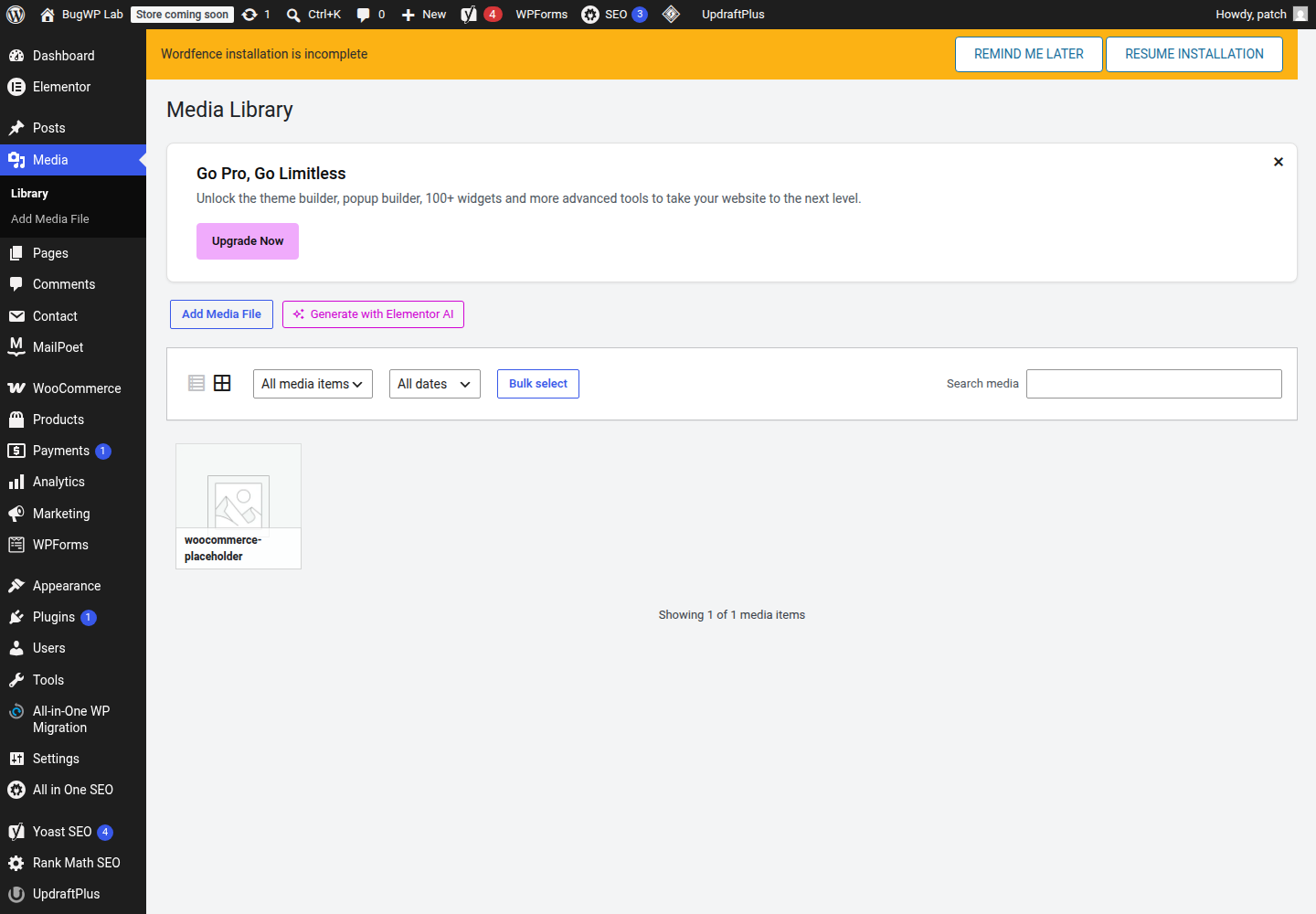
Check these first:
- Open the Media Library in a private/incognito window.
- Try a different browser.
- Disable browser extensions that modify admin pages, especially ad blockers, script blockers, password managers, or privacy tools.
- Clear only the browser cache for your site’s admin area if another browser works.
- If you use a caching, optimization, CDN, firewall, or security plugin, temporarily turn off settings that affect logged-in users or the WordPress admin.
A blank or spinning grid does not prove the uploads are missing. Avoid deleting media files, regenerating thumbnails, or running database cleanup until you know what is failing.
Look for the failing request
Open the browser developer tools while you are on Media > Library:
- Right-click the page and choose Inspect.
- Open the Console tab and reload the Media Library.
- Look for red JavaScript errors.
- Open the Network tab, reload again, and filter for
admin-ajax.php,wp-json, ormedia.
The media grid depends on admin scripts and data requests. WordPress also exposes site data through the REST API, so blocked or malformed JSON responses can leave the grid waiting even when the rest of wp-admin looks normal.
Use the result to choose the next step:
403,401, or security challenge: check a firewall, security plugin, host WAF, or CDN rule.500: check PHP errors and the server error log.- JavaScript error naming a plugin folder: disable that plugin first.
- JSON response that contains HTML, a warning, or a login page: a PHP notice, redirect, or security layer is contaminating the response.
- Only browser-extension errors: retest with extensions disabled before changing WordPress.
Fix plugin and theme conflicts safely
If the error points to a plugin, deactivate that plugin from Plugins > Installed Plugins, then reload Media > Library. If the grid loads, leave the plugin disabled and check its settings, changelog, or vendor support before re-enabling it.
If the error does not name a plugin, use a safer conflict test:
- Make a backup or restore point from your host.
- Deactivate recently updated plugins first.
- Test the Media Library grid after each change.
- Re-enable anything that does not affect the problem.
Prioritize plugins that touch images, galleries, uploads, security, caching, admin UI, REST API access, lazy loading, or JavaScript optimization.
If plugins do not explain it, briefly switch to a default WordPress theme from Appearance > Themes. If the grid starts working, the active theme or child theme is loading code in wp-admin that needs to be fixed. Switch back after the test if you are not ready to keep the default theme active.
Check Site Health and logs
Open Tools > Site Health and review critical issues. Pay attention to REST API errors, loopback request failures, PHP errors, low memory, or security rules blocking requests.
For deeper checks, enable WordPress debugging only long enough to capture the error. WordPress explains the available constants in its official debugging documentation. A typical temporary setup in wp-config.php is:
define( 'WP_DEBUG', true );
define( 'WP_DEBUG_LOG', true );
define( 'WP_DEBUG_DISPLAY', false );
Reload the Media Library once, then check wp-content/debug.log. Remove or set those debug constants back afterward, especially on a public site.
If your host provides an error log in the control panel, check it at the same time as the failed Media Library request. A timestamp match is more useful than scanning old errors.
Clear the right caches
Clear caches in this order:
- Browser cache for wp-admin.
- WordPress caching plugin cache.
- Object cache, if your host exposes a button for it.
- CDN cache, if the admin area or REST requests are being cached by mistake.
- Server cache from the hosting panel.
Admin pages should not be minified, delayed, combined, or cached like public pages. If the grid works after disabling a performance setting, exclude /wp-admin/, admin-ajax.php, and REST API requests from that feature.
When attachment data is the problem
Sometimes the grid loads until it reaches a specific broken attachment. Clues include the list view working, the grid failing after scrolling, or errors mentioning image metadata.
Use Media > Library in list view and sort by upload date. Look around the date the problem began. Temporarily inspect or remove suspicious recent uploads such as unusually large images, unsupported files, or files uploaded by an import plugin.
Do not bulk-delete media while troubleshooting. If you suspect one item, download a copy first or confirm it is not used on important pages.
Optional SSH fallback
Use WP-CLI only if the wp-admin checks above are blocked, you already have SSH access, and you are comfortable with command-line maintenance.
Check whether WordPress can list media attachments:
wp post list --post_type=attachment --fields=ID,post_title,post_mime_type --posts_per_page=10If that works, the database can still return attachments and the failure is more likely in the admin screen, REST response, plugin code, or browser JavaScript.
You can also test plugin conflicts from SSH by deactivating one likely plugin at a time:
wp plugin deactivate plugin-folder-nameReactivate it after testing if it was not the cause:
wp plugin activate plugin-folder-nameAvoid bulk repair commands unless you have a current backup and a clear error pointing to the database or files.
How to confirm it is fixed
The fix is good when:
- Media > Library opens in grid view without an endless spinner.
- Filtering by media type and date still works.
- Opening an attachment shows its details panel.
- Uploading a small test image completes and appears in the grid.
- The browser console no longer shows the same JavaScript or request error.
After confirming, re-enable any disabled plugins one at a time. If the issue returns after one plugin or setting is restored, you have found the conflict.
Escalate with the useful details
Contact your host when the failed request shows a server-side block, WAF challenge, 403, 500, memory error, or server log entry that you cannot change from WordPress.
Contact a plugin or theme vendor when the browser console names their script, or the grid works only while their plugin/theme is disabled.
Send them the exact failed URL, HTTP status code, console error, and the time you reproduced it. That is more useful than saying the media library is blank.