
Most MailPoet “missing pro feature” or “license” confusion comes from one of four places: the site is on the free plan, the account/license is not connected, the MailPoet Sending Service is pending review, or the issue is actually SMTP/DNS delivery rather than a premium-feature lock. Start in WordPress admin and confirm the MailPoet account status before reinstalling anything.
Quick checks before changing settings
Open MailPoet > Settings and check the account, sending, and key-related notices first. If MailPoet shows an account review, inactive key, plan mismatch, or sending method warning, fix that specific notice before testing themes, plugins, or database changes.
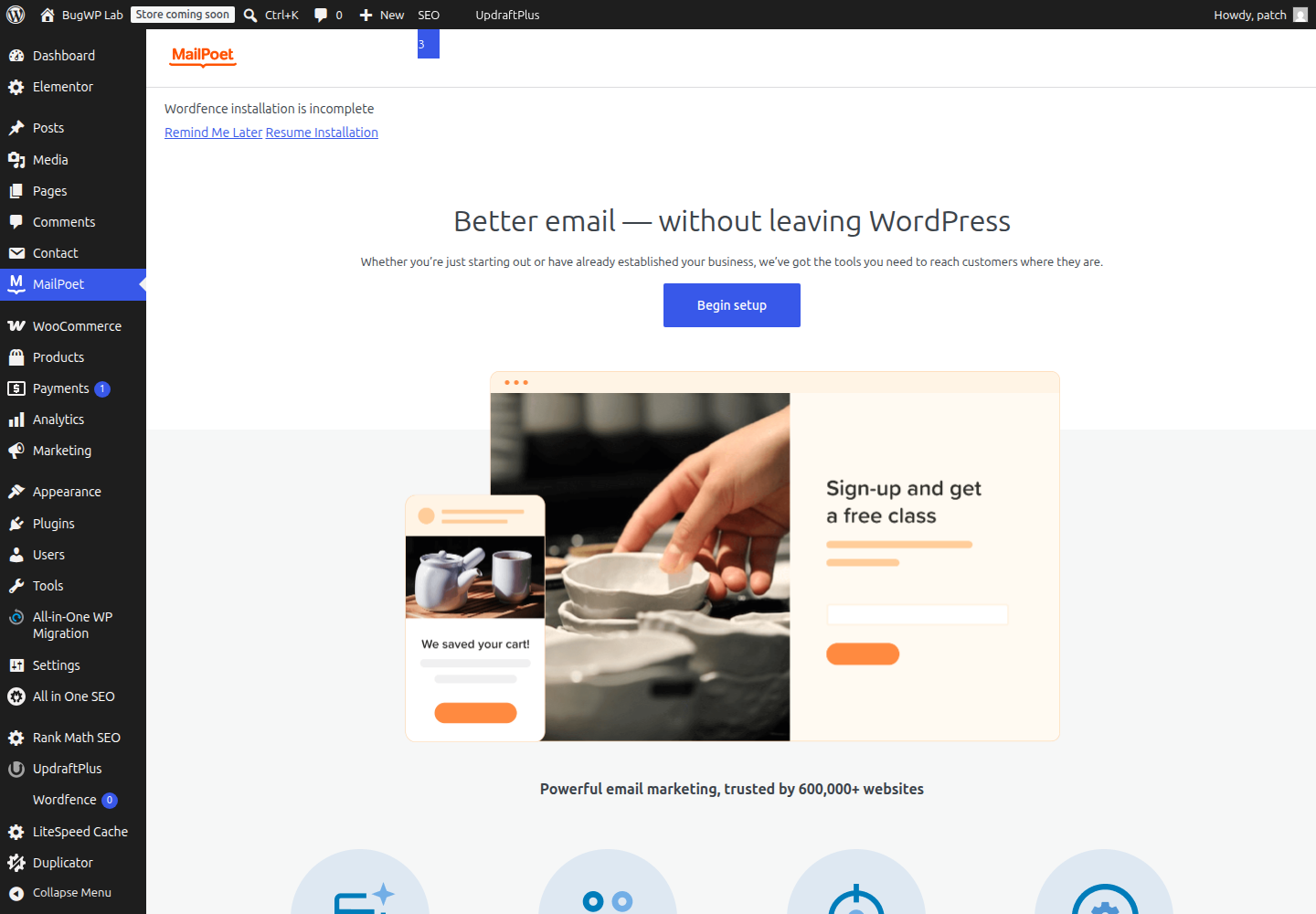
Check these items in order:
- Account email: Make sure the site is connected to the same MailPoet account that owns the paid plan.
- Plan limits: A paid plan can unlock premium features, but sending limits and account review status can still affect sending.
- Sending method: Confirm whether the site uses MailPoet’s sending service, your host, or a separate SMTP plugin.
- Plugin version: Update MailPoet from Plugins > Installed Plugins if an update is available. Use a backup first on WooCommerce or high-traffic sites.
- Admin role: Test from a full Administrator account, not an editor, shop manager, or custom role.
MailPoet’s account dashboard is the right place to confirm subscription ownership and plan status. For the WordPress-side key check, use MailPoet’s official guide to activating a MailPoet key, which also explains when the Premium plugin is required for paid-plan features.
Match the symptom to the likely cause
Use the symptom to avoid chasing the wrong fix.
| Symptom | Most likely cause | First place to check |
|---|---|---|
| A premium feature is missing or disabled | Free plan, inactive license, wrong account, missing Premium plugin, or outdated plugin | MailPoet > Settings, then MailPoet account |
| Sending is paused or account says pending review | MailPoet Sending Service account review | MailPoet account/status notices |
| “Problem sending email” notices appear | Sending method, SMTP, DNS, or provider rejection | MailPoet sending settings and mail provider logs |
| Bulk action, CAPTCHA, archive, or styling behavior changed | Feature change, plugin update, theme conflict, or unsupported customization | MailPoet settings, changelog, plugin support |
| The send button is unavailable | Account status, incomplete setup, paused sending, or plan restriction | MailPoet setup and account notices |
The key distinction is this: a license problem usually affects feature access, while SMTP, DNS, and provider errors affect delivery. For example, a missing Premium plugin can hide a paid feature even though normal emails still send. A paused MailPoet Sending Service account can block newsletters even though the license key and premium screens look correct.
Safest fix order
1. Reconnect the MailPoet account
In WordPress admin, go to MailPoet > Settings and look for the account or key area. If the site shows the wrong account, no active key, or a stale connection, disconnect and reconnect using the MailPoet account that owns the plan.
After reconnecting, refresh the MailPoet settings page and check whether the feature appears. If it does not, clear any site cache and reload the admin screen in a private browser window.
2. Confirm the plan actually includes the feature
Not every MailPoet feature is unlocked by the base free plugin. If a feature disappeared after a renewal, migration, staging push, or domain change, compare the active site domain with the domain shown in your MailPoet account.
Also check whether the paid feature needs the separate MailPoet Premium plugin. MailPoet’s key activation documentation notes that paid plans may require both the main MailPoet plugin and the Premium plugin to be installed, active, and on matching major/minor versions.
Do not delete and reinstall MailPoet just to “force” premium features back. Reinstalling rarely fixes an account mismatch and can make recovery harder if settings or add-ons are changed at the same time.
3. Separate sending-service review from license activation
If MailPoet says the account is pending review or sending is paused, that is not the same thing as a broken WordPress plugin. The site may still load MailPoet screens and premium features while sending remains unavailable.
MailPoet documents paused sending separately in its article on what happens when the MailPoet Sending Service is paused. That problem affects sending through MailPoet’s service; it is not fixed by reinstalling the plugin or switching themes.
For review or paused-sending messages, collect:
- Site domain
- MailPoet account email
- The exact notice shown in MailPoet > Settings
- Whether you use MailPoet Sending Service or another SMTP provider
Then contact MailPoet support through the account connected to the subscription. Plugin reactivation, theme switching, or database cleanup will not approve a sending account.
4. Check SMTP and DNS only for delivery errors
If the problem is failed delivery, inspect the sending method before blaming the license. A site using an SMTP plugin can fail even when the MailPoet plan is active.
Check:
- SMTP plugin status and authentication
- Mail provider bounce or rejection logs
- Domain DNS records required by your sender
- Whether the “from” address domain matches the authenticated sender
For MailPoet Sending Service setup, MailPoet’s guide to setting up the MailPoet Sending Service explains the sending method and sender authentication steps. If you are using a third-party sending method instead, DNS and SMTP records belong with that provider, not with the MailPoet license check.
For DNS changes, use your domain registrar or DNS host. Wait for propagation before retesting; repeated MailPoet changes will not speed up DNS.
5. Rule out a plugin or theme conflict only after account checks
If the account and plan are correct but a feature is still missing or broken, test for a conflict during a low-traffic window.
A safer sequence is:
- Take a backup.
- Update MailPoet and related add-ons.
- Temporarily disable caching/minification plugins.
- Switch only if needed to a default WordPress theme.
- Reactivate plugins one at a time until the issue returns.
Use WordPress’s built-in plugin screen for ordinary updates. WordPress documents plugin update behavior in its guide to managing plugin and theme auto-updates.
How to confirm it worked
A license or plan fix is confirmed when the exact missing feature is visible again from the same Administrator account and MailPoet > Settings no longer shows an inactive key, wrong account, plan mismatch, or missing Premium plugin warning.
A sending fix is confirmed differently. Send a small test email to an address you control, then check the recipient inbox, spam folder, MailPoet status, and your SMTP or mail provider logs. Do not treat a visible premium feature as proof that delivery is fixed, and do not rely only on the WordPress admin notice disappearing.
Rollback and escalation notes
If reconnecting the account makes things worse, reconnect the previous account or restore the backup taken before plugin updates. If a CSS or theme customization caused a MailPoet page display issue, remove that customization first instead of resetting MailPoet data.
Contact MailPoet support when the site shows account review, plan ownership, billing, premium feature entitlement, or sending-service approval problems. Contact your host or mail provider when logs show SMTP authentication failures, blocked ports, rejected sender domains, or DNS-related delivery errors.