
This error usually means WordPress can receive the upload but cannot write the finished file into wp-content/uploads. Start by checking storage and the uploads folder through your hosting panel or SFTP before changing permissions.
Quick checks before changing files
Try one small image in Media > Add New or the Media Library upload area. WordPress stores uploaded files in the Media Library, and the official Media Library documentation notes that uploaded media is saved under the site’s upload directory structure.
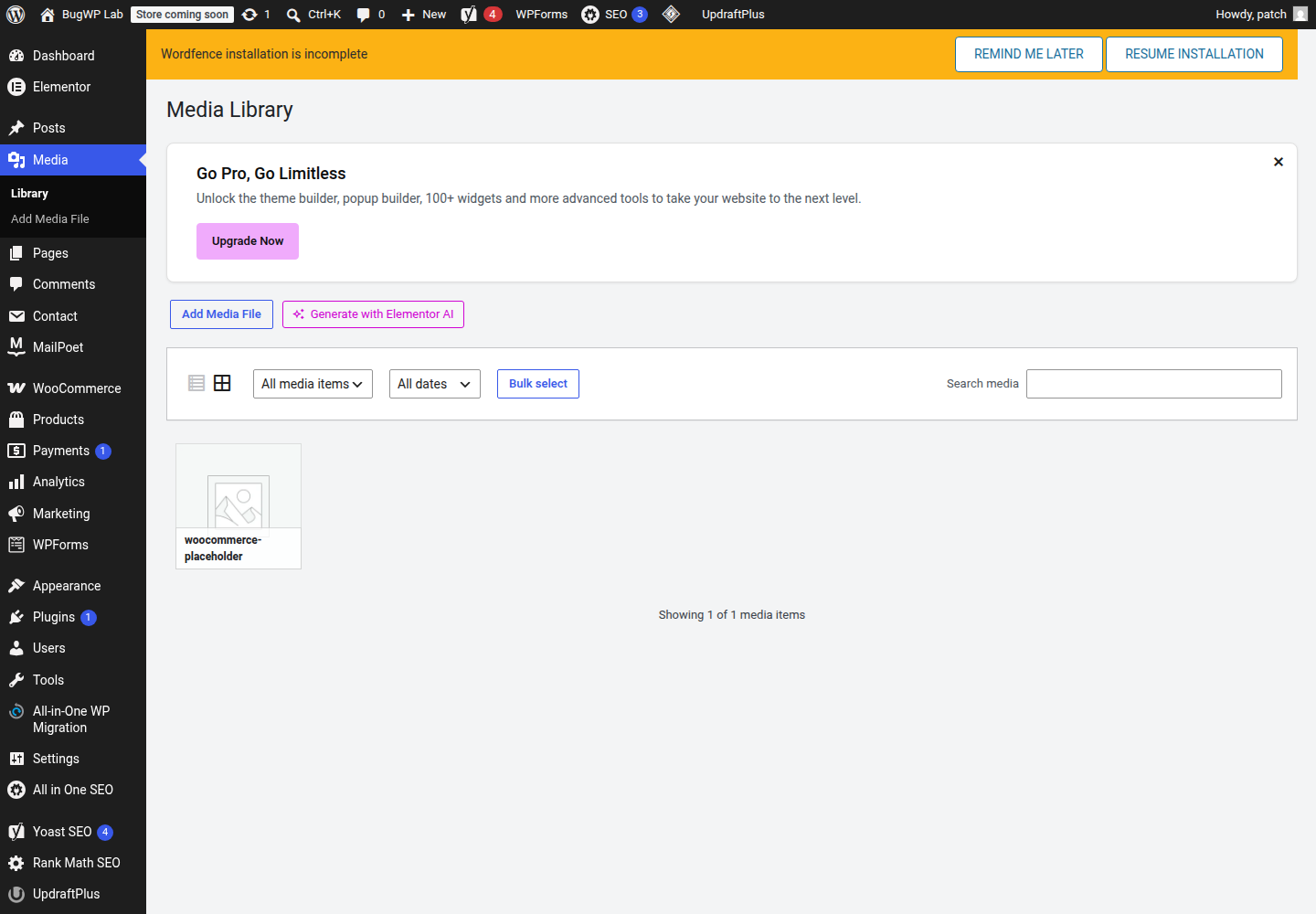
If the same error appears, check these first:
- Your hosting account has free disk space and has not hit an inode or file-count limit.
wp-content/uploadsexists.- The current year/month folder exists if your site organizes uploads by month.
- The folder is writable by the web server user.
- A security plugin, migration plugin, or host-level rule is not blocking writes to
wp-content.
Storage limits are worth checking first because they can look exactly like a permissions problem. If your hosting panel shows the account is full, freeing space or increasing the quota is the fix. Do not loosen file permissions to work around a full account.
Safest fix order
1. Check storage in your hosting panel
Open your hosting dashboard and look for disk usage, file usage, or inode usage. The wording varies by host.
If usage is at or near the limit:
- Delete old backups you no longer need.
- Remove unused staging copies or large zip files.
- Empty cache folders if your host or cache plugin provides a safe purge tool.
- Ask the host to raise the limit if the account is legitimately full.
Then retry the upload in WordPress.
2. Inspect the uploads folder
Use your host’s file manager or SFTP. WordPress.org has a general guide to using FTP clients if you need to connect outside the hosting panel.
Go to:
wp-content/uploadsIf uploads is missing, create it inside wp-content.
If your site uses month-based folders, also check the current year and month folder, for example:
wp-content/uploads/2026/06Create the missing year or month folder only if WordPress cannot create it itself and the rest of the uploads directory looks normal.
3. Fix folder permissions without guessing wildly
Most WordPress installs need directories to be readable, enterable, and writable by the correct server user. On many hosts, folders are commonly set to 755 or 775, depending on how the server account is configured.
Use your hosting file manager or SFTP permissions dialog to check:
wp-contentwp-content/uploads- the current year/month folder inside uploads
Do not set folders to 777 as a permanent fix. It can make the site writable by users or processes that should not have that access.
If changing permissions is necessary, make the smallest change first: fix only uploads and its current year/month subfolder, then test one upload. Keep a note of the previous value so you can roll it back.
4. Ask the host to fix ownership when permissions look correct
If uploads already has normal-looking permissions but WordPress still cannot move files, ownership may be wrong. This often happens after a migration, backup restore, manual file upload, or server move.
A common sign is that the folder is writable in SFTP but not writable from WordPress. That means your login user can write files, but the PHP/web server process may not own or have access to the same folders.
This is usually a hosting-side fix. Send your host a short request:
WordPress uploads are failing with “The uploaded file could not be moved.” Please check ownership and write access for wp-content/uploads and its subfolders so the PHP/web server user can create files there.That is safer than applying broader permissions yourself.
Optional SSH checks
Use SSH only if you already have access and are comfortable reading filesystem output. These checks do not change anything.
From the WordPress root:
ls -ld wp-content wp-content/uploadsTo inspect the current month folder:
ls -ld wp-content/uploads/2026 wp-content/uploads/2026/06You are looking for three things: the folder exists, the permissions are not unusually restrictive, and the owner/group matches the rest of the working WordPress files.
To check available disk space:
df -h .To check inode usage, if your server supports it:
df -i .If space or inodes are at 100%, fix the quota issue before touching permissions.
If uploads fail only for one file
This specific error is usually folder write access, but a single file can still fail for other reasons. Test with a small .jpg or .png filename using only letters, numbers, and hyphens.
If the small test file uploads but the original does not, check file size limits, file type restrictions, or image corruption instead. WordPress lists several broader upload and server problems in its common WordPress errors documentation.
How to confirm the fix worked
Upload a small image in Media > Add New.
Then confirm both sides:
- The file appears in the Media Library.
- The file exists under
wp-content/uploads/YYYY/MM/in your file manager or SFTP client.
If WordPress creates the new month folder automatically and the image opens from the Media Library, the write path is working again.
Rollback and escalation notes
If you changed folder permissions and the upload still fails, restore the previous permission value and contact the host. At that point, ownership, quota, PHP temporary directory settings, or a server security rule is more likely than a simple WordPress setting.
Escalate to hosting support when:
- Disk or inode usage is full and you cannot clear enough space.
- Permissions look normal but WordPress still cannot write.
- The error started immediately after a migration or restore.
- Only the host can change file ownership.
- Server logs show permission denied, open_basedir, ModSecurity, or temporary-directory errors.
Keep the request narrow: ask them to check write access from PHP to wp-content/uploads, not to broadly relax permissions across the whole site.