
The fastest safe fix is to confirm the server’s PHP upload temp directory first. In most cases, WordPress shows “Missing a temporary folder” because PHP cannot find or write to the temporary location it uses before WordPress moves the file into wp-content/uploads.
Quick checks before changing files
Try a small image upload in Media > Add New.
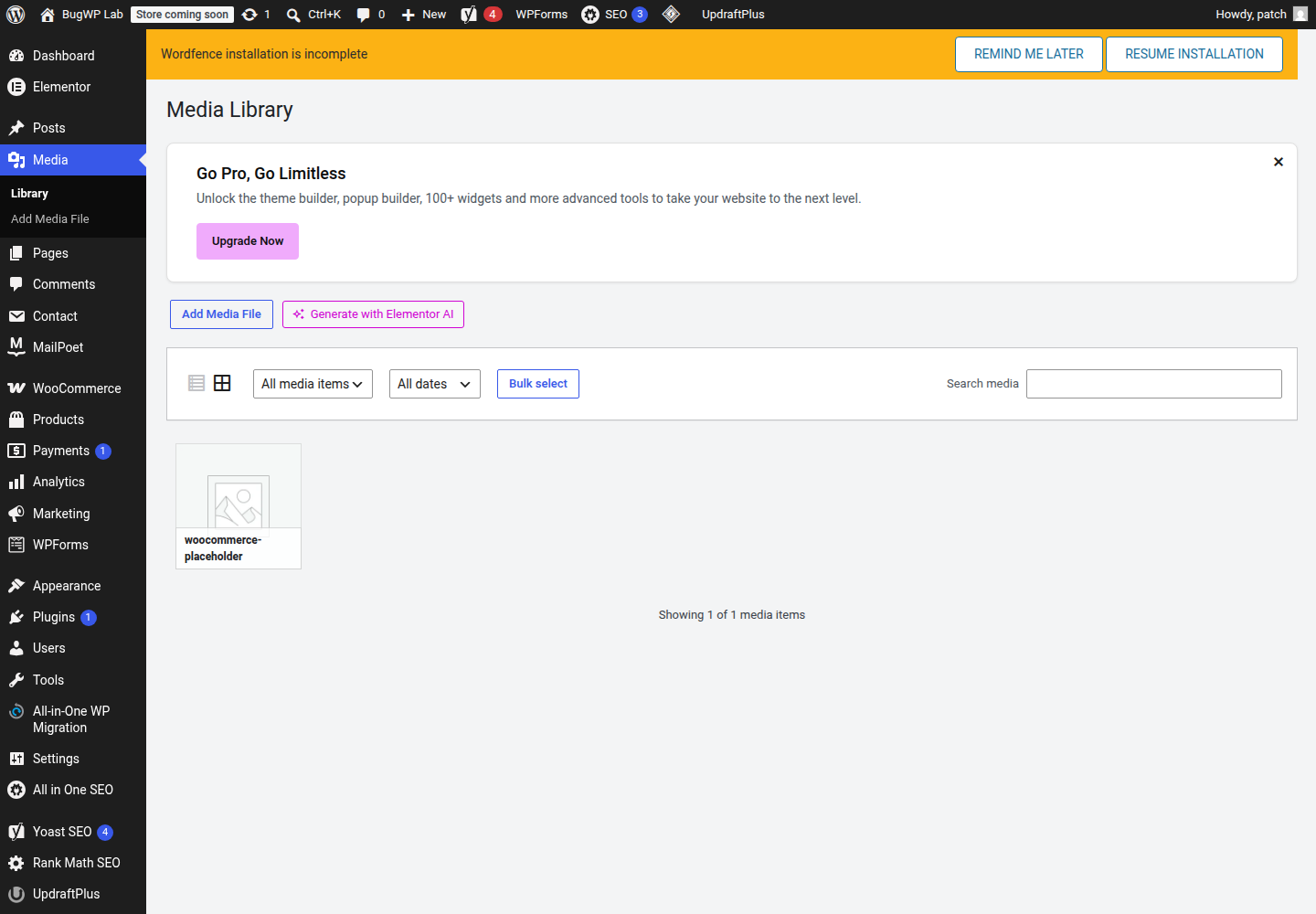
If WordPress shows “Missing a temporary folder,” the failure usually happens before WordPress can move the uploaded file into wp-content/uploads.
Check these first:
- Your hosting account is not out of disk space.
- The site can write to
wp-content/uploads. - The host has not recently changed PHP versions, account isolation, or temporary directory paths.
- The error affects all uploads, not only one file type or one oversized file.
WordPress lists “Missing a Temporary Folder” among common upload-related errors in its official common WordPress errors documentation. The key point is that this is usually a server/PHP path problem, not a Media Library setting.
Safest fix order
1. Ask hosting support to confirm PHP’s upload temp directory
On managed or shared hosting, this is the cleanest fix. Ask support to check the active PHP upload_tmp_dir value for your domain and confirm that the directory exists and is writable by the site’s PHP user. PHP uses upload_tmp_dir as the temporary directory for uploaded files before the application handles them.
Use wording like this:
WordPress uploads are failing with “Missing a temporary folder.” Please check the active PHP
upload_tmp_dirfor this domain and confirm the temp directory exists, is writable by the PHP process, and is not blocked by account isolation or disk quota limits.
If the host fixes the PHP temp path, you do not need to add a WordPress-specific workaround.
2. Check wp-content/uploads permissions
If hosting confirms the PHP temp directory is valid, inspect the WordPress uploads folder using your hosting file manager or SFTP.
Go to:
wp-content/uploadsMake sure the folder exists. If it is missing, create it.
Typical directory permissions are 755 or, on some hosts, 775. Avoid setting upload folders to 777 unless your host specifically tells you to do so for that server setup. World-writable permissions can create avoidable security risk.
After changing permissions, try another small upload in Media > Add New.
3. Define a WordPress temp folder only if the PHP temp path cannot be fixed quickly
If your host cannot correct upload_tmp_dir right away, you can define a temporary folder inside wp-content. This is a workaround, not the first choice.
Before editing, download a backup copy of wp-config.php.
Using SFTP or your hosting file manager:
- Create this folder:
wp-content/temp- Set its directory permissions to match your other writable WordPress folders, usually
755or775.
- Open
wp-config.php.
- Add this line above the comment that says “That’s all, stop editing”:
define( 'WP_TEMP_DIR', __DIR__ . '/wp-content/temp/' );Save the file and retry the upload.
If the site shows a fatal error after editing wp-config.php, restore the backup copy immediately. A missing quote, semicolon, or wrong placement can break PHP loading.
Optional SSH check
If you have SSH access, you can inspect whether WordPress sees the constant after adding it:
wp config get WP_TEMP_DIRUse this only as a check. It does not prove the folder is writable by PHP uploads, so still confirm with a real Media Library upload.
If you need error details
WordPress debugging can help when the upload error appears alongside PHP warnings or permission messages. Use the official Debugging in WordPress guidance and keep debug display off on public sites.
A temporary wp-config.php debugging setup commonly logs errors to wp-content/debug.log without showing them to visitors:
define( 'WP_DEBUG', true );
define( 'WP_DEBUG_LOG', true );
define( 'WP_DEBUG_DISPLAY', false );
Remove or disable debugging after you finish checking the log.
How to confirm the fix worked
Upload a small image in Media > Add New.
The fix worked if:
- The upload completes without the missing temporary folder message.
- The file appears in the Media Library.
- A dated folder is created under
wp-content/uploadsif your site organizes uploads by month and year.
Then upload the kind of file that originally failed. If small images work but large files fail, you are probably dealing with upload size, memory, timeout, or security filtering instead of the missing temp folder issue.
Rollback and escalation
If you added WP_TEMP_DIR, treat it as temporary. Once the host fixes the server’s PHP temp directory, remove the custom WP_TEMP_DIR line from wp-config.php, retry a Media Library upload, and then delete wp-content/temp if uploads still work.
Contact hosting support again if:
wp-content/uploadsandwp-content/tempare writable but uploads still fail.- The error returns after a PHP version change.
- Disk usage looks normal but the host reports quota or inode limits.
- The temp folder exists but PHP still cannot write to it.
At that point, the next fix is usually at the server account level, not inside WordPress.