
Yoast Premium features can appear to be missing for two different reasons: the license is not connected to this site, or the Yoast panel is failing inside the editor because of a plugin, theme, or browser conflict. Start by confirming which Yoast plugin is active before changing files or database tables.
Quick checks
Open Plugins > Installed Plugins and look for the exact Yoast plugin name.
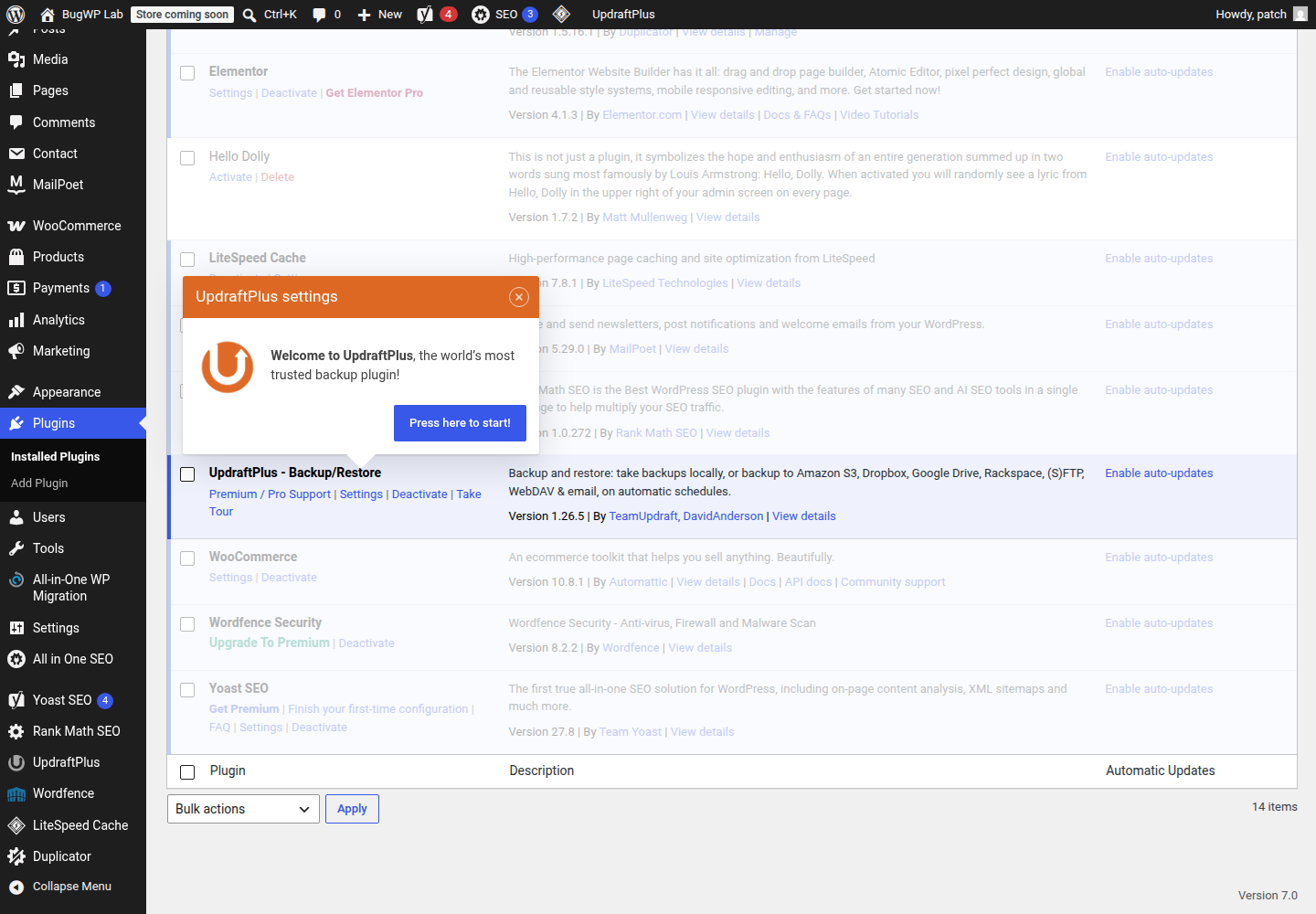
If you only see Yoast SEO, the site is using the free plugin. Premium-only tools, such as the redirect manager and internal linking suggestions, require the Premium plugin to be installed and connected.
If you see Yoast SEO Premium, confirm it is active. Then open the Yoast settings area and check whether WordPress shows a subscription, connection, or update notice.
Next, sign in to your Yoast account and compare the site URL there with the URL in Settings > General in WordPress. A mismatch after a staging push, domain change, HTTPS migration, or clone can leave the subscription connected to the wrong site.
Yoast documents common cases where a subscription is active in MyYoast but not active on the website in its official help page on subscription and connection notices.
Fix in the safest order
1. Update the free plugin first
Before touching the Premium plugin, update the free Yoast SEO plugin from Dashboard > Updates or Plugins > Installed Plugins.
Yoast Premium works alongside the base Yoast SEO plugin, so version mismatches can create missing panels, inactive feature notices, or editor errors that look like a license problem.
If the update fails, stop and check file permissions or hosting update restrictions before trying to reconnect the license.
2. Reconnect the site to MyYoast
In wp-admin, open the Yoast SEO settings or subscription notice and use the reconnect or sign-in option if one is shown.
After reconnecting, return to Plugins > Installed Plugins and check whether the Premium plugin now allows updates. If the subscription is active but the site still shows it as inactive, compare these details:
- The WordPress site URL and home URL.
- The domain connected inside MyYoast.
- Whether the site was recently copied from staging to production.
- Whether the host blocks outbound HTTPS requests from WordPress.
Yoast lists server-side connection failures such as 400, 403, 404, 500, and SSL connection errors in its subscription troubleshooting documentation. Those are usually host, firewall, or server communication issues rather than editor settings.
3. Confirm the Premium plugin is installed
A connected subscription does not help if the Premium plugin itself is missing.
Go to Plugins > Installed Plugins and check for Yoast SEO Premium. If it is absent, download the plugin from your Yoast account and install it through Plugins > Add New Plugin > Upload Plugin. WordPress’s official support documentation explains the standard plugin management workflow.
Do not delete the free Yoast SEO plugin just because Premium features are missing. Confirm Yoast’s current installation instructions for your subscription first, then follow the plugin upload path.
4. Clear update and connection noise
If the subscription was just reconnected, wait a minute and refresh Dashboard > Updates.
Then check:
- Dashboard > Updates for Yoast updates.
- Plugins > Installed Plugins for Premium activation status.
- The Yoast settings page for remaining subscription notices.
- The post editor for the missing Premium feature.
Avoid clearing database tables or deleting Yoast options to reset the license. That can remove SEO settings without fixing the account connection.
If the editor still shows missing Yoast panels
If the license is connected and the Premium plugin is active, missing or blank Yoast panels are more likely to be an editor conflict than a subscription problem. This is especially true when the issue started after another plugin, theme, browser extension, or WordPress editor update.
Use this quick isolation path:
- Open the same post in a private browser window.
- Disable browser extensions for that test.
- Temporarily deactivate non-essential editor plugins, especially page builders, custom field plugins, and Gutenberg feature plugins.
- Switch to a default WordPress theme only if plugin testing does not identify the conflict.
- Re-enable each item one at a time.
Make a backup first if this is a production site. If you use a managed host, test on staging so you do not disrupt editors.
Optional SSH check
If you have SSH access and WP-CLI installed, use it only to confirm what WordPress sees:
wp plugin list | grep -i yoastLicense reconnection and Premium downloads are still account and wp-admin tasks.
Rollback and escalation
If reconnecting or updating Yoast makes the editor worse, deactivate only the Yoast Premium plugin first and leave the free plugin active. That keeps the base Yoast SEO plugin available while removing the Premium layer from the editor.
If WordPress becomes inaccessible after a plugin update, use your host’s file manager or SFTP to rename the Yoast Premium plugin folder temporarily. Then log back in and restore from a host backup if needed.
Contact Yoast support when the subscription is active in MyYoast but the same live domain will not connect after updates. Contact the host when the Yoast notice mentions server errors, SSL failures, blocked requests, or 403/500 responses, because WordPress may not be able to reach Yoast’s licensing service from the server.