
The safest first step is to add small CSS fixes in Appearance > Customize > Additional CSS, preview them before publishing, and avoid editing parent theme files. Use a child theme only when the change belongs with long-term theme code.
Pick the safest place for the CSS
Use this order unless your site has a stricter deployment process.
1. Additional CSS for small visual fixes
Go to Appearance > Customize > Additional CSS and paste only the rule you need. This is the best place for quick changes such as spacing, button colors, hiding a decorative element, or adjusting text size. The Customizer is useful for custom CSS in WordPress because you can preview the change before publishing; child theme CSS is better when the change needs to be managed with the rest of your theme code.
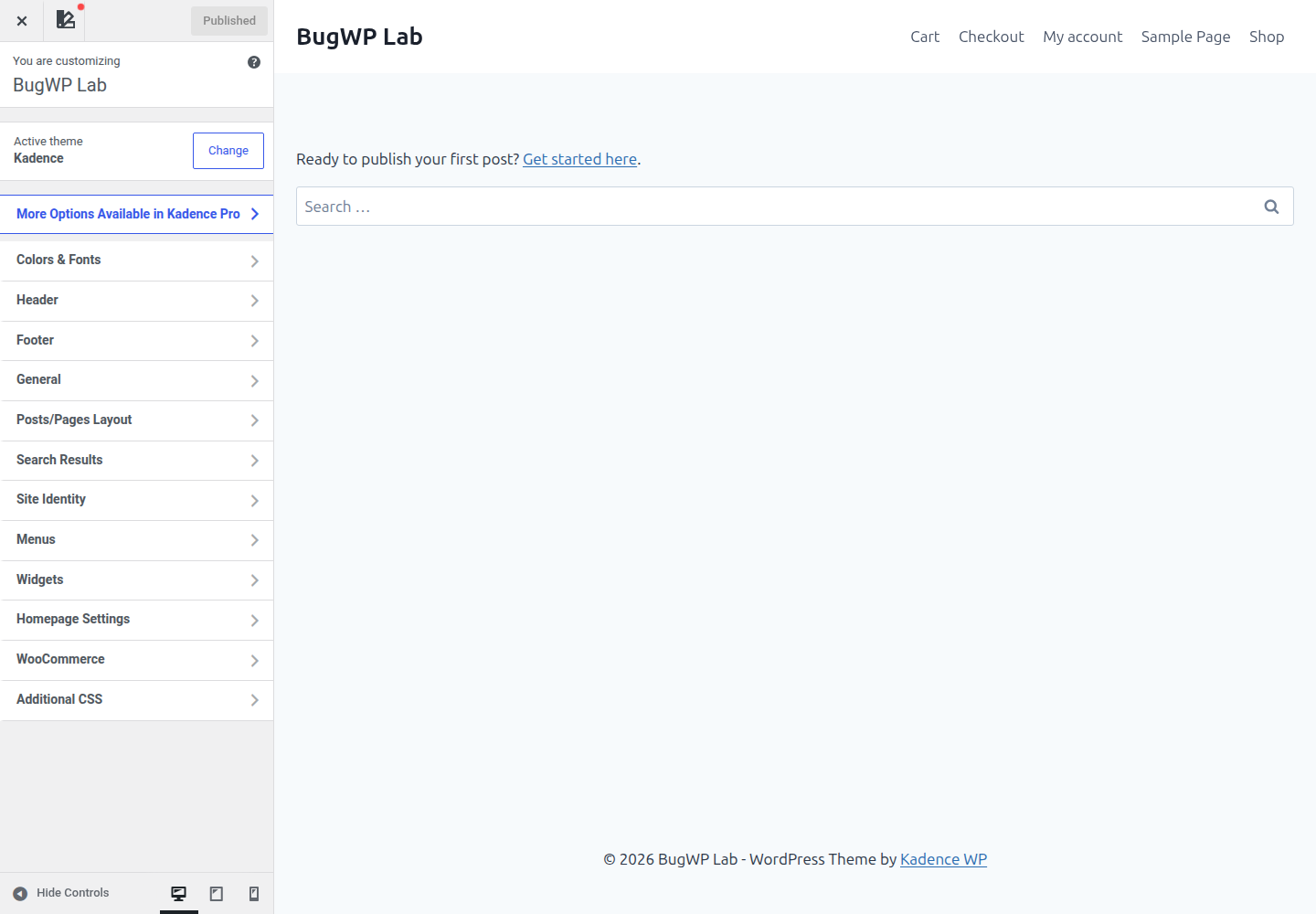
Before publishing:
- Check the page where the rule applies.
- Check a narrow mobile preview.
- Confirm the rule does not affect similar elements elsewhere.
- Copy the CSS into a note before saving, so rollback is simple.
A small, reversible rule is fine here:
.site-header .custom-logo {
  max-height: 72px;
  width: auto;
}
If the change looks wrong, remove the rule from Additional CSS and publish again.
2. Child theme CSS for permanent theme changes
Use a child theme when the CSS is part of a larger design change, needs to live in version control, or should stay organized with other theme customizations. WordPress documents child themes as the supported way to modify a theme without directly editing the parent theme’s code: Child Themes.
Add CSS to the child theme’s style.css, not the parent theme’s stylesheet. Parent theme updates can replace edited files, and a typo in a theme file is harder to undo if you lose wp-admin access.
Before editing a child theme file:
- Take a backup or create a restore point in your hosting panel.
- Keep a copy of the original file.
- Add one change at a time.
- Have SFTP or file manager access ready so you can remove the last edit if the site breaks.
For theme developers, WordPress recommends loading styles with the proper enqueue system rather than hard-coding stylesheet links: Including CSS & JavaScript.
3. A CSS plugin only when the site already uses one
A custom CSS plugin can be useful if the site’s workflow already depends on one, but do not add a plugin just to store two lines of CSS. Extra plugins add another place to check during troubleshooting.
If you do use a plugin, make sure you know how to disable it from Plugins or through your host’s file manager before adding broad CSS changes.
Quick checks before you publish
Check the selector first. Most CSS problems come from targeting too much.
Use your browser’s inspect tool to confirm the class or element you are changing. Prefer a specific selector:
.single-product .entry-title {
  margin-bottom: 1rem;
}
Avoid broad selectors unless you mean to affect the whole site:
h1 {
  margin-bottom: 1rem;
}
Also check for these mistakes:
- Missing closing braces:
} !importantused to force a rule without understanding what it overrides- CSS copied from another theme that uses different class names
- Rules that hide content needed for accessibility or navigation
- Desktop-only fixes that break mobile menus, product grids, or forms
Safest fix order
- Make the change in Additional CSS if it is small and visual.
- Preview the affected page before publishing.
- Check mobile width.
- Publish only after the page still loads and the target element looks right.
- Move repeated or long-term CSS into a child theme when it becomes part of the site’s theme work.
Do not edit style.css in the parent theme from Appearance > Theme File Editor. If a syntax mistake or accidental paste causes a visible issue, rollback is slower. If the parent theme updates, your change can also disappear.
How to confirm it worked
Open the exact page you changed in a private browser window or a browser where you are logged out. This avoids mistaking admin-only styles or cached previews for the public page.
Check:
- The changed element looks correct.
- Header, menu, forms, and footer still behave normally.
- The page works on mobile width.
- No important content is hidden.
- The change remains after clearing any cache used by your host, CDN, or caching plugin.
If you cannot see the change, clear cache first. Then inspect the element and confirm your selector still matches the HTML. If the CSS appears crossed out in browser tools, another rule is overriding it.
Roll back cleanly
For Additional CSS, return to Appearance > Customize > Additional CSS, remove the last rule you added, and publish.
For child theme CSS, remove only the last block you added from the child theme’s style.css. If the site is broken and wp-admin is hard to use, connect through SFTP or your hosting file manager and restore the previous copy of the file.
For a CSS plugin, disable the new rule first. If the plugin itself causes trouble, disable the plugin from wp-admin. If wp-admin is unavailable, use your host’s file manager or SFTP to rename that plugin’s folder temporarily.
When to stop and contact support
Contact your theme developer or hosting support when the CSS change exposes a deeper problem, such as:
- The Customizer will not save.
- The site shows a server error after editing theme files.
- CSS files are not updating even after clearing all caches.
- The selector changes after every page load because a builder or plugin generates dynamic class names.
- The issue appears only for logged-out visitors or only behind a CDN.
Send them the page URL, the CSS you added, where you added it, and what you already removed or rolled back. That gives support enough context without asking them to guess through the whole theme.