
A MailPoet admin login or redirect loop can show up when an administrator tries to open MailPoet screens such as MailPoet > Subscribers, the MailPoet dashboard, emails, or settings and gets sent back to login instead. The safest first path is to rule out a stale browser session, cache layer, plugin conflict, disconnected MailPoet account, or server redirect before changing WordPress files.
Quick checks before changing the site
Open wp-admin in a private window first. If MailPoet works there, clear cookies and site data for your domain in the normal browser. WordPress authentication depends on browser cookies, and old cookies can send you back through login even when the password is correct.
Confirm the problem is only MailPoet:
- Can you open
Dashboard > PostsorDashboard > Plugins? - Does the loop happen only on
MailPoet > Subscribers,MailPoet > Emails, orMailPoet > Settings? - Does another administrator account see the same loop?
- Did the issue start after updating MailPoet, a security plugin, a cache plugin, or changing HTTPS/CDN settings?
If the whole WordPress admin area loops, treat it as a general WordPress login redirect problem first. Check the site URL, HTTPS redirects, cache, and plugin conflicts before focusing on MailPoet.
If you can still reach wp-admin
Go to MailPoet > Settings and confirm the MailPoet account or sending method has not been disconnected.
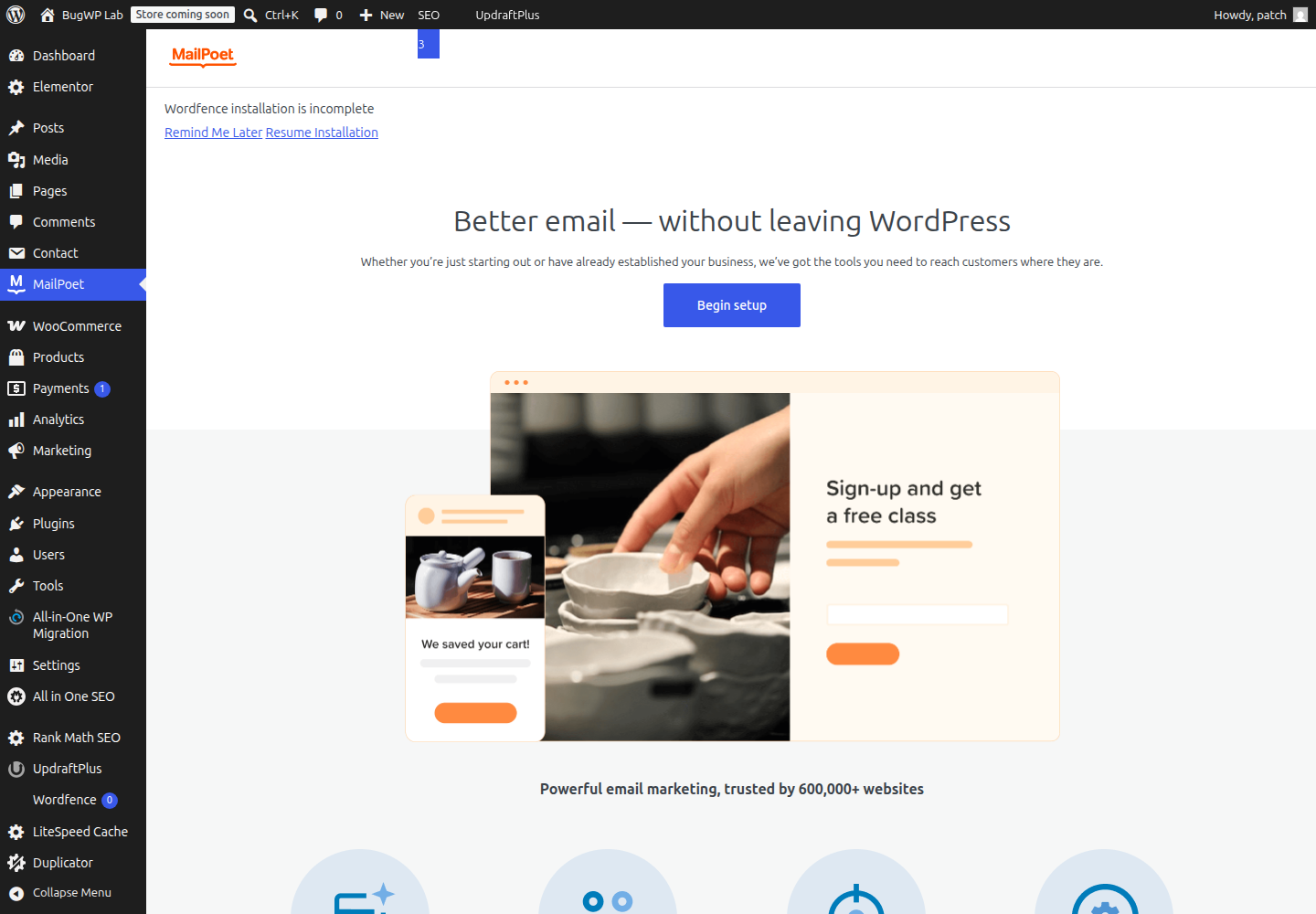
Save the settings once without making unrelated changes. If the loop appears only when opening subscriber or email screens, also check MailPoet > Help or MailPoet > Status if available. MailPoet’s own documentation keeps troubleshooting topics for blank admin pages, sending failures, database connection issues, and account-related errors in its Common Problems knowledge base.
Next, clear every cache layer you control:
- WordPress cache plugin page cache and object cache
- host cache from the hosting dashboard
- CDN cache, if the site uses Cloudflare or another proxy
- browser cache for the site domain
Do not purge only the public homepage cache. Admin requests, REST API calls, and redirected URLs can be affected by security, cache, or CDN rules even when the front end loads normally.
Isolate plugin and theme conflicts safely
If MailPoet still redirects, use the least disruptive isolation path.
First, update MailPoet from Plugins > Installed Plugins if an update is available. WordPress documents plugin management in the official Plugins screen guide. Before updating on a production store or membership site, take a host backup or confirm recent backups exist.
Then temporarily disable plugins most likely to affect admin routing:
- security and login protection plugins
- cache and optimization plugins
- redirect managers
- SMTP/email logging plugins
- membership or role editor plugins
Check MailPoet after each disable. If the loop stops, re-enable the plugins one at a time until the conflict returns.
If disabling plugins does not help, briefly switch to a default WordPress theme from Appearance > Themes. Switch back immediately after the check if the theme is not involved.
If you cannot stay logged in
Use your hosting file manager or SFTP and rename only the likely conflict plugin folder first. For example, rename a cache or security plugin folder under wp-content/plugins/ by adding -disabled to the folder name. Reload wp-admin, then restore the original folder name after testing.
If you need to disable MailPoet itself to regain admin access, rename:
wp-content/plugins/mailpoet
to:
wp-content/plugins/mailpoet-disabled
WordPress will deactivate it because the plugin folder is no longer found. Rename it back after you regain access, then activate it from the Plugins screen. This does not erase MailPoet data by itself, but avoid uninstalling the plugin unless you have confirmed what data removal settings are active.
Check redirects, HTTPS, and REST access
A MailPoet admin screen may rely on WordPress admin URLs and background requests. If a host, CDN, or security rule redirects those requests back to login, MailPoet can look like the broken part while the real issue is routing.
Check these items:
Settings > Generaluses the correctWordPress AddressandSite Address.- Both URLs use the same scheme, usually
https://. - The host is not forcing mixed
wwwand non-wwwredirects. - Cloudflare or CDN rules exclude
wp-admin,wp-login.php, and WordPress REST requests from aggressive caching. - Security rules are not blocking MailPoet admin AJAX or REST requests.
WordPress explains the Site Address and WordPress Address settings in its Changing the site URL documentation. Change these only if you know the correct canonical domain; a wrong value can lock you out.
Optional SSH check with WP-CLI
If you have SSH access, WP-CLI is useful for checking whether MailPoet is active without relying on the browser:
wp plugin status mailpoetTo deactivate MailPoet temporarily:
wp plugin deactivate mailpoetTo reactivate it after testing:
wp plugin activate mailpoetWP-CLI documents these commands in the official wp plugin reference. Use the same system user your host recommends for WordPress commands, especially on managed hosting.
Confirm the fix
After each change, test in this order:
- Log in at
/wp-login.php. - Open the main WordPress dashboard.
- Open
MailPoet > Settings. - Open the MailPoet screen that originally looped, such as Subscribers.
- Send or preview only if the admin screens are stable.
If the issue returns after re-enabling one plugin, leave that plugin disabled and contact its vendor with the exact MailPoet screen URL that loops, the time it happened, and any browser console or server log error.
Rollback and escalation
Undo temporary changes as soon as the test is complete: re-enable disabled plugins, switch the theme back, and restore renamed plugin folders. If a site URL or HTTPS change made the login loop worse, restore the previous values from the hosting database tool or ask the host to roll back the last known-good backup.
Contact MailPoet support when the loop happens only inside MailPoet screens after browser, cache, plugin, theme, and redirect checks are clean. Contact the host when server logs show 403, 500, WAF, ModSecurity, or redirect-rule entries for wp-admin, admin-ajax.php, or REST API requests.