
If Duplicator Pro features are missing, the license banner will not clear, or a Pro button disappeared after a server change, start by checking which Duplicator plugin WordPress is actually running. The quickest safe path is to confirm the installed plugin first, then separate license activation problems from plugin, PHP, or host-side blocking problems.
Most Duplicator license confusion comes from one of three things: the free plugin is installed instead of Duplicator Pro, the Pro license is not verified on this site, or a server/plugin change is blocking the Pro admin screens.
Quick checks before changing anything
Open Plugins > Installed Plugins and look at the plugin name.
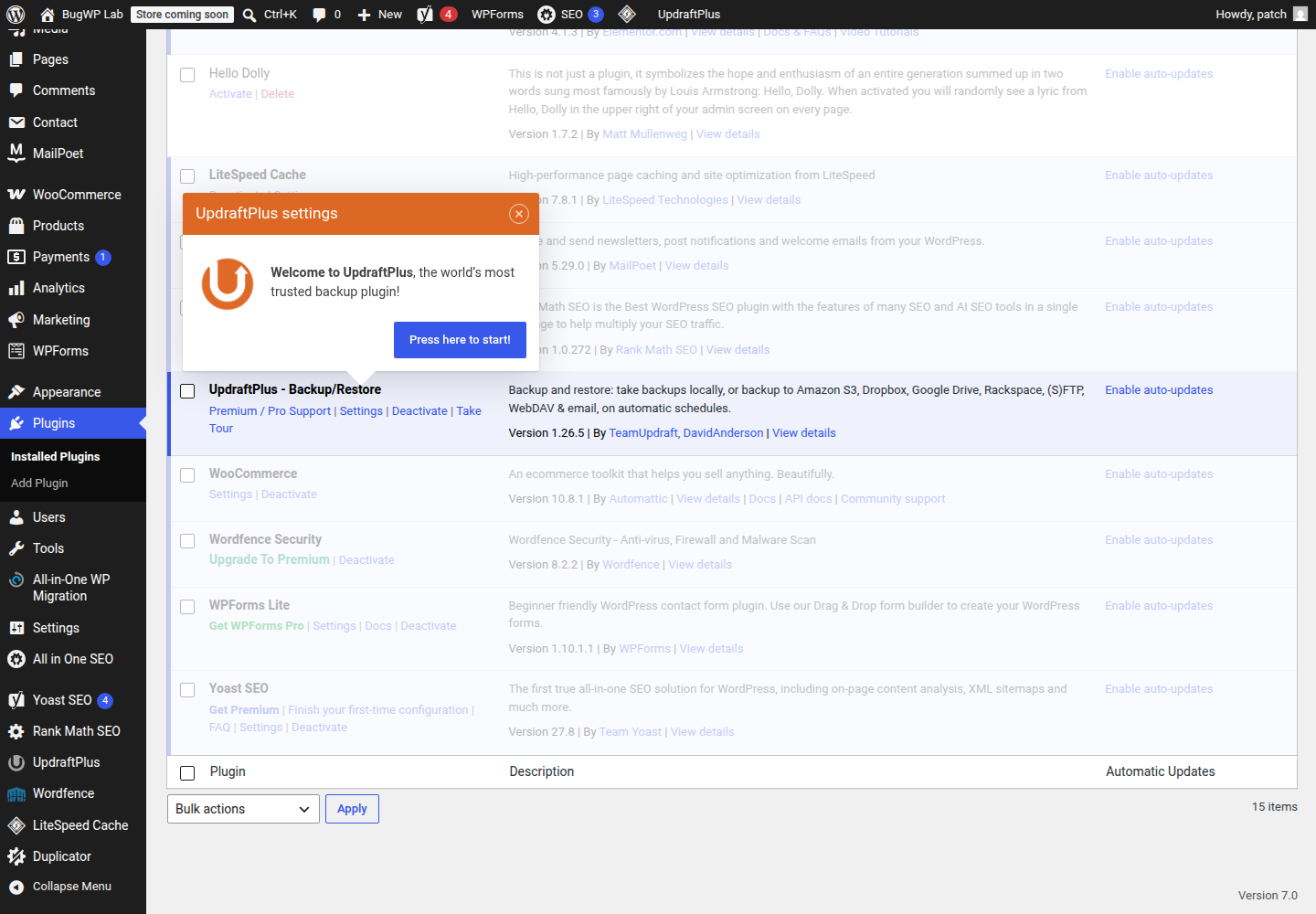
If it says Duplicator, you are using the free WordPress.org plugin. A Pro license key does not turn the free plugin into the Pro plugin by itself. Duplicator’s own license instructions say the Pro plugin must be installed before the license can be verified in WordPress admin.
If it says Duplicator Pro, go to Duplicator Pro > Settings and check the license area. Duplicator documents license verification from the WordPress dashboard in its guide to verifying a Duplicator Pro license.
Before you troubleshoot deeper, also check:
- You are logged in as a WordPress administrator.
- The Pro plugin is active, not just uploaded.
- The license key was copied from the Duplicator account without extra spaces.
- The site URL matches the site where you expect to use the license.
- No security plugin, firewall, or host rule is blocking Duplicator Pro from reaching Duplicator’s licensing service.
Match the symptom to the likely cause
Use this before reinstalling anything.
| Symptom | Most likely cause | Safest next step |
|---|---|---|
| Pro features are missing completely | Free Duplicator plugin is installed instead of Duplicator Pro | Install and activate Duplicator Pro from your Duplicator account |
| License field rejects a valid-looking key | Key is wrong, expired, over the site limit, or blocked by a connection issue | Recopy the key, then check license count, server connection, and cURL |
| Pro plugin is active, but the license notice remains | License validation has not completed or cannot reach Duplicator | Use the validate/refresh option, then check host-side outbound HTTPS restrictions |
| “Add New” or backup buttons are missing after a server update | Plugin, PHP, or JavaScript/admin conflict | Update Duplicator Pro, then check browser console and PHP version |
| Download links return 403 | Host security rule, file permission, or backup storage protection issue | Check host file/security rules before lowering protections |
Fix the installed-plugin mismatch first
If Plugins > Installed Plugins shows only the free Duplicator plugin, do not keep entering a Pro license key there.
- Download the Pro ZIP from your Duplicator account.
- In WordPress admin, go to Plugins > Add New > Upload Plugin.
- Upload the Pro ZIP.
- Activate Duplicator Pro.
- Go to Duplicator Pro > Settings and verify the license.
The free and Pro editions may both appear during an install, upgrade, or migration flow. Follow any prompt Duplicator shows during that process. Once Pro is installed and active, keep only the edition you intend to use active unless Duplicator’s installer or support team specifically tells you otherwise. Running both editions longer than needed can make the admin menu and feature list harder to interpret.
If the Pro license will not verify
Duplicator’s license troubleshooting documentation points to a few common causes: the key needs validation, the license is expired or already at its site limit, the server cannot reach Duplicator, cURL is unavailable, or networking rules are blocking the request. Work through those in this order.
First, paste the key again from your Duplicator account. Avoid copying a label, newline, or trailing space. Also check the license count in your Duplicator account if the key has already been used on staging, development, or old production URLs.
Next, use Duplicator’s license troubleshooting steps to check whether the server can connect to duplicator.com, whether PHP cURL is enabled, and whether the host is blocking the licensing request. Duplicator covers those causes in its guide to resolving license activation issues.
If you need a WordPress-side signal before contacting the host, open Tools > Site Health. WordPress explains this screen in its Site Health documentation. A Site Health warning is not a Duplicator diagnosis by itself, but REST API, loopback, or HTTPS connection failures can support the same host-side conversation: ask whether outbound HTTPS requests from WordPress/PHP are blocked and mention that Duplicator Pro needs to contact its licensing service.
If your host lets you view PHP extensions, confirm that cURL is enabled for the PHP version your site uses. If cURL is missing or outbound connections are restricted, the host usually needs to fix that at the server level.
If Pro screens changed after a PHP or server update
A missing button or broken “Next” action after a server update is usually not a license problem by itself. Treat it as an admin-side compatibility or script issue.
Do this in the least risky order:
- Update Duplicator Pro to the latest available version.
- Clear any admin-page optimization or security plugin cache.
- Temporarily disable plugins that modify the WordPress admin area, such as security hardening, admin menu editors, or JavaScript optimization tools.
- Check the browser console on the broken Duplicator screen for JavaScript errors.
- Confirm the site is running a PHP version supported by your WordPress and plugin stack.
WordPress publishes current PHP recommendations in its hosting requirements. If the issue started immediately after a PHP upgrade, switch back to the previous supported PHP version in the hosting panel long enough to confirm whether the Duplicator screen returns to normal. Then update the plugin stack before moving PHP forward again.
If downloads are blocked or return 403
A 403 on a Duplicator archive or installer download is usually a server access rule, not proof that the license failed.
Check these before changing plugin settings:
- Host file protection or malware rules blocking
.zip,.daf, orinstaller.phpdownloads. - Security plugin rules blocking direct downloads from backup directories.
- File permissions changed by a migration or restore.
- Backup files left in a publicly reachable location.
Be careful here. Backup archives can contain database content, uploads, configuration files, and user data. If you make a backup URL publicly reachable to test a download, remove or protect it immediately afterward. Duplicator’s backup and installer files should not be left exposed after a migration.
Optional SSH check
Use WP-CLI only if you already have SSH access and want to confirm which free plugin slug WordPress sees:
wp plugin status duplicatorThat command can confirm whether the free Duplicator plugin is active. It does not verify a Duplicator Pro license and it will not diagnose account limits.
How to confirm the fix worked
After the likely cause is fixed, reload WordPress admin in a private browser window.
A license-related fix worked when:
- Duplicator Pro appears as the active plugin.
- The license screen shows the key as active or verified.
- Pro-only menus and settings are available.
- WordPress admin no longer shows renewal or activation notices for the same license.
A server/admin conflict fix worked when:
- The affected Duplicator button appears again.
- The scan or backup screen advances normally.
- The browser console no longer shows a new JavaScript error on that Duplicator admin page.
Rollback and escalation
Before reinstalling Duplicator Pro or changing PHP versions, take a fresh site backup using your host’s backup tool if available. If the Duplicator admin screen is already broken, do not rely on Duplicator as the only rollback.
If reinstalling the Pro plugin makes the dashboard worse, use SFTP or the hosting file manager to rename the Duplicator Pro plugin folder under wp-content/plugins/. That disables the plugin without deleting your site.
Contact Duplicator support when the Pro plugin is installed, the license key is current, the license has an available site activation, cURL is enabled, and the site can make outbound HTTPS requests but activation still fails. Contact the host when downloads return 403, cURL is missing, outbound requests are blocked, or a PHP/server change caused Duplicator admin buttons to disappear.