
When WordPress shows upgrade prompts after you bought a plugin, or the paid blocks, settings, templates, or integrations are missing, first confirm whether the site is running the free plugin, the paid add-on, or both. Many license problems are not broken licenses at all. They come from installing only the WordPress.org version, leaving the pro add-on inactive, or activating the license against a different site URL.
Start in wp-admin before replacing files. Check the installed plugin name, the plugin’s license screen, and the vendor account download.
Quick Checks Before Changing Files
Open Plugins > Installed Plugins and look closely at the plugin names. Many products use two plugins:
- a free base plugin from WordPress.org
- a separate premium or pro add-on downloaded from the vendor account
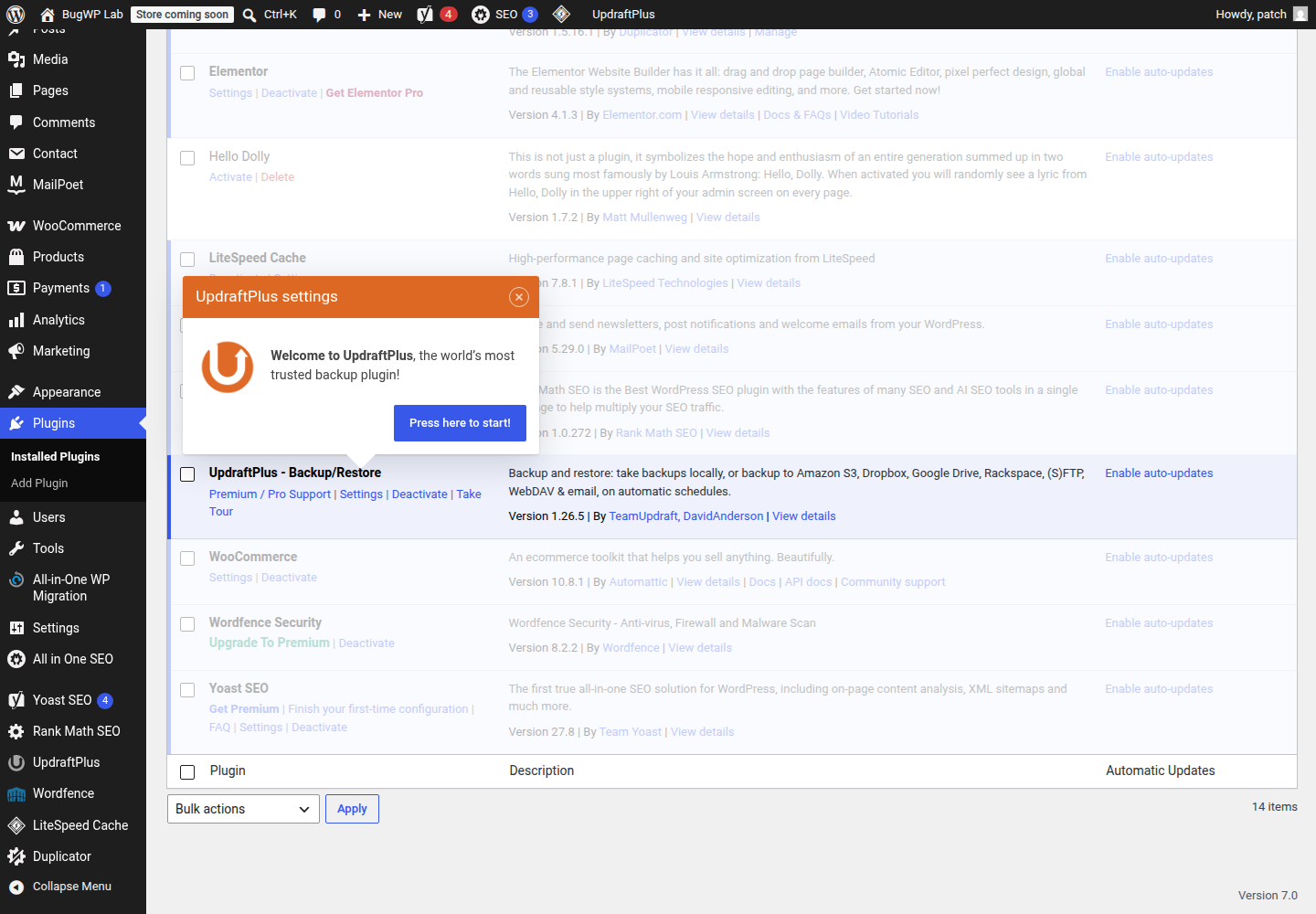
If only the free plugin is installed, WordPress may still show upgrade prompts even after you bought a license. For many vendors, the license connects the site for updates, support, or activation checks, but the paid plugin files still have to be installed separately.
Next, open the plugin’s own license, account, or settings page. Check for:
- license key entered but not activated
- “expired,” “inactive,” “site limit reached,” or “domain mismatch” messages
- a staging, temporary, or old domain listed instead of the live site
- a notice saying the pro add-on is missing or disabled
If the plugin came bundled with a theme, confirm whether your purchase includes direct plugin updates. Bundled plugins often use the theme seller’s update path instead of the plugin vendor’s own license system.
Safest Fix Order
1. Confirm You Have the Correct Plugin Installed
From Plugins > Installed Plugins, compare the installed plugin name with the product in your vendor account.
If the vendor account provides a ZIP file for the pro version, download a fresh copy directly from that vendor account. Then go to Plugins > Add New > Upload Plugin and upload that ZIP. WordPress supports installing plugins from ZIP files through the admin upload screen, as covered in the official WordPress plugin installation documentation.
Before replacing a plugin, take a backup or confirm your host has a recent restore point. If WordPress says the plugin already exists, stop and verify the ZIP first: it should match the same vendor, same product line, and intended edition. Use WordPress’s built-in replace option only when you are confident you are replacing the correct plugin with the vendor’s current ZIP.
2. Activate the Paid Add-On
A license key alone may not unlock features if the pro add-on is inactive.
Go to Plugins > Installed Plugins and activate the premium plugin or add-on. Then refresh the plugin settings page and check whether the missing panels, blocks, templates, integrations, or update notices appear.
If activation causes an error, use your host’s file manager or SFTP to rename that plugin’s folder inside wp-content/plugins/. WordPress will deactivate it on the next admin load. Rename it back after you have the correct version or vendor instructions.
3. Reconnect the License to the Current Site URL
Many premium plugins record an activation against a site URL. Problems are common after moving from staging to production, changing from HTTP to HTTPS, switching domains, or restoring a backup.
In the plugin license screen:
- Deactivate the license on the current site.
- Save the settings.
- Activate it again.
- Clear any plugin, host, or CDN cache.
- Refresh the plugin’s pro feature page.
Also check Settings > General and confirm the WordPress Address and Site Address are the real live URLs. WordPress documents these fields in its General Settings guide. Do not edit them casually on a live site; a wrong URL can lock you out.
If the license dashboard on the vendor site still shows the old domain, remove that activation there if the vendor allows it. If there is no self-service reset, contact the vendor and ask them to release the old activation.
4. Check Whether Updates Are Coming From WordPress.org or the Vendor
Free plugins update through WordPress.org. Paid plugins commonly use the vendor’s updater, and that updater may require a valid license or account connection.
On the Plugins screen, inspect the update message. If it refers to the WordPress.org plugin but your vendor account shows a separate pro download, you may be updating only the free plugin.
Run updates from the normal WordPress admin update screen when possible. WordPress explains the standard update flow in its updating WordPress documentation. For paid plugins, follow the vendor’s update method if their documentation says to upload a ZIP, connect a license, or install a separate pro add-on first.
5. Temporarily Rule Out Security, Firewall, or Cache Blocking
License activation often needs an outbound HTTPS request from your site to the vendor. If activation spins, times out, or returns a generic error, check for blocking at these layers:
- security plugin firewall
- host firewall or malware protection
- maintenance mode plugin
- CDN or web application firewall
- server-level outbound HTTP restrictions
Do not permanently disable security tools just to force activation. Instead, temporarily pause the specific blocking rule if the tool shows one, retry the license activation, then turn protection back on.
If you are on managed hosting, ask support whether outbound HTTPS requests from WordPress to the vendor’s license domain are blocked. Give them the plugin name, vendor domain, time of the failed activation, and any error shown in the plugin screen.
How to Confirm It Worked
After making one change, reload the plugin’s settings or feature page in a private browser window.
The issue is fixed when:
- the license screen shows active or connected
- the pro plugin/add-on is active on the Plugins screen
- the missing pro blocks, modules, templates, integrations, or settings appear
- update notices refer to the paid product or vendor updater when applicable
- upgrade prompts no longer block features you have purchased
If the feature appears for admins but not editors or shop managers, check the plugin’s role or capability settings. That is a permissions issue, not a license issue.
Rollback and Escalation
If a plugin replacement breaks the site, restore the backup or rename the newly uploaded plugin folder through SFTP/file manager so WordPress disables it. Then reinstall the last known working version from your vendor account.
Contact the plugin vendor when the license is active but paid features remain locked. Include the site URL, plugin name, installed free and pro version numbers, the exact license message, and whether the license dashboard shows the correct domain.
Contact your host when activation fails with timeouts, blocked requests, server errors, or no response from the vendor license server. Contact the theme seller only when the plugin was bundled with a theme and your question is about whether that theme purchase includes premium plugin updates.