
All in One SEO usually shows Pro prompts or missing features because the Lite plugin is active, the Pro license is not connected, the wrong plan is installed, or another plugin/theme is interfering with the admin screen. Start in wp-admin by checking the active AIOSEO plugin and license status before changing SEO settings.
Quick checks before changing anything
Go to Plugins > Installed Plugins and look for the exact All in One SEO plugin that is active.
If the site only has All in One SEO or All in One SEO Lite, Pro-only modules will still appear in the interface, but they may be locked behind upgrade prompts. That is not always an error. AIOSEO documents the Lite-to-Pro upgrade path separately in its guide to upgrading from All in One SEO Lite to Pro.
Next, open All in One SEO > Dashboard and check whether AIOSEO says the license is active, expired, missing, or connected to the wrong account.
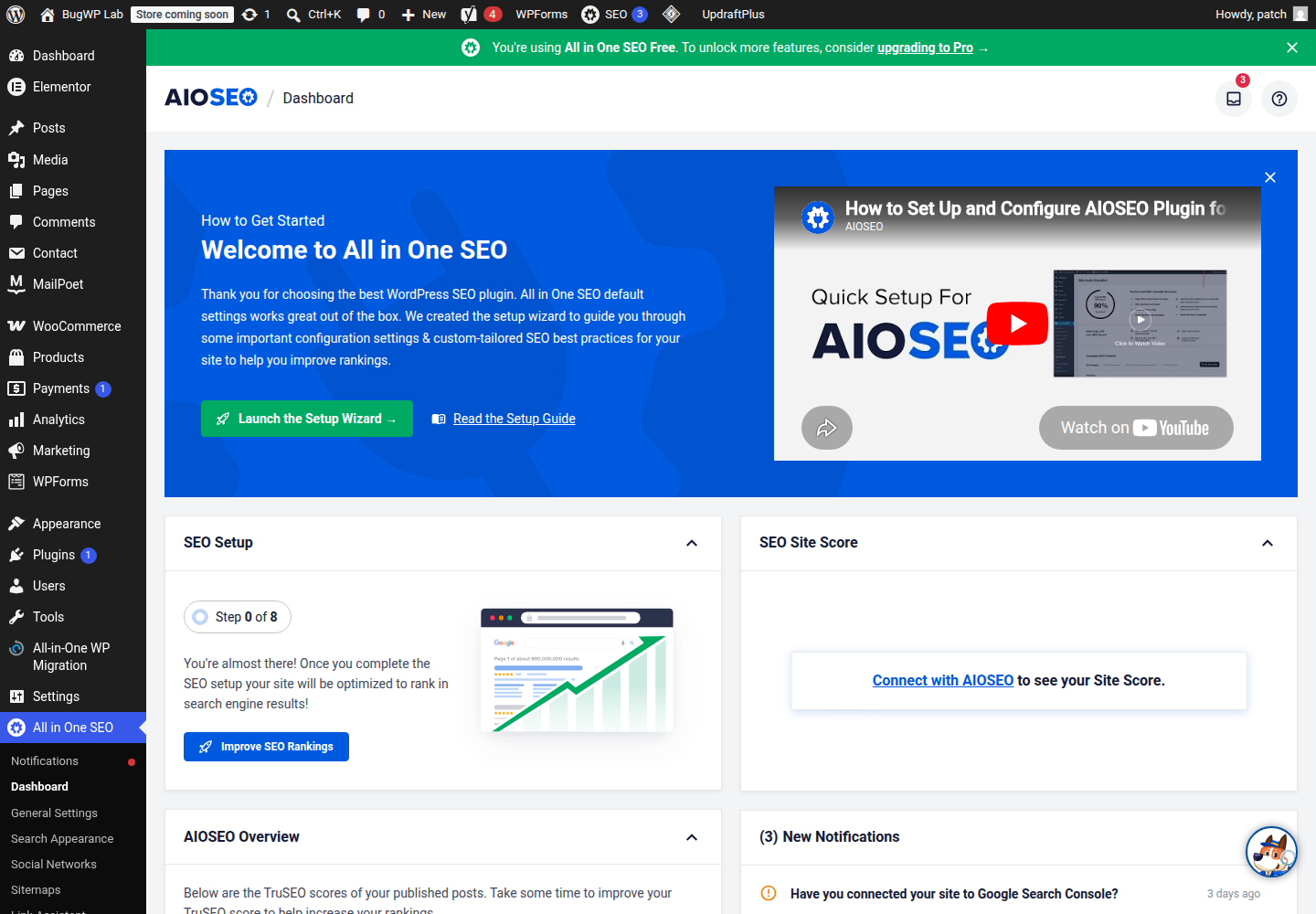
Use this simple split:
| What you see | What it usually means | Safest next step |
|---|---|---|
| Pro feature has an upgrade badge | The current plugin or plan does not include it | Confirm the plan in your AIOSEO account |
| License field is empty or invalid | Pro may be installed but not activated | Reconnect the license key |
| Feature worked before and now disappeared | License, update, role, or conflict issue | Update and isolate conflicts |
| AIOSEO panel is broken only on one admin screen | Theme/plugin/admin JavaScript conflict is possible | Use Health Check troubleshooting mode |
| SEO tags are missing from page source | Settings, theme output, cache, or plugin conflict | Check source, cache, and AIOSEO settings |
AIOSEO’s own FAQ explains where account and license details are managed. Use that account page as the source of truth, not the wording of a single upsell prompt inside wp-admin.
Fix license and plan confusion first
In wp-admin, go to All in One SEO > General Settings and look for the license section.
- Copy the license key from your AIOSEO account.
- Paste it into the license field.
- Save or connect the license.
- Refresh the AIOSEO screen in a private browser window.
If the site recently upgraded from Pro to a higher plan, confirm that the new license key is the one installed on the site. A stale key can leave the plugin active but keep higher-tier features unavailable.
If the license is active but the feature is still locked, check whether the feature belongs to your plan. Some modules are not included in every paid tier. Do not reinstall WordPress or reset AIOSEO settings for a plan mismatch.
Check whether the feature is actually enabled
Some AIOSEO features need to be enabled after the license is connected. Look under the relevant AIOSEO menu, such as:
- All in One SEO > Search Appearance
- All in One SEO > Sitemaps
- All in One SEO > Link Assistant
- All in One SEO > Local SEO
- All in One SEO > Redirects
If a feature appears but is disabled, enable it and save changes. If it still shows an upgrade prompt, treat that as a license or plan issue rather than a WordPress malfunction.
For Google Search Console prompts, connect only if you want that integration. A Site Health suggestion about connecting Search Console does not mean your SEO metadata is broken.
Rule out a display or conflict problem
If the AIOSEO interface is broken, blank, or behaves differently on a custom post type or taxonomy screen, test for an admin-side conflict before changing SEO data.
Install the official Health Check & Troubleshooting plugin from WordPress.org. Its troubleshooting mode lets an administrator temporarily disable plugins and switch themes for their own session without affecting public visitors.
In troubleshooting mode:
- Enable only All in One SEO.
- Check the same AIOSEO screen again.
- If it works, re-enable the theme and other plugins one at a time.
- Stop when the problem returns.
A conflict that appears only on a custom post type, taxonomy edit screen, or builder admin page is usually better reported with exact screen details than treated as a license failure.
If SEO data is missing from page source
Open a public page in a logged-out/private browser window, then view the page source. Search for aioseo, og:title, twitter:card, or the page title.
If AIOSEO output is missing:
- Clear any page cache, CDN cache, and optimization plugin cache.
- Check All in One SEO > Search Appearance for the post type.
- Edit the affected page and confirm it has an SEO title and meta description.
- Temporarily disable other SEO plugins. Running two SEO plugins can suppress or duplicate metadata.
- Switch to a default theme in Health Check troubleshooting mode and test again.
Do not judge this from the block editor preview alone. Check the public rendered page because SEO tags are printed in the front-end HTML head.
Optional SSH check
Use WP-CLI only if you already have SSH access and want to confirm which plugin package WordPress sees as active.
wp plugin status all-in-one-seo-packThis confirms whether WordPress sees the plugin as active. It does not prove that your paid license is valid, and it cannot tell you which AIOSEO account owns the key.
The official WP-CLI handbook documents the wp plugin status command if you need syntax details.
Rollback and recovery notes
Before reinstalling AIOSEO Pro or changing SEO settings, take a fresh backup through your host or backup plugin.
If a reinstall goes wrong:
- Deactivate AIOSEO from Plugins > Installed Plugins.
- Reinstall the correct Lite or Pro package.
- Reconnect the license key.
- Clear caches and recheck one public page source.
- Restore the backup only if settings or metadata were actually lost.
Avoid deleting the plugin unless AIOSEO support specifically asks for it. Deactivation is reversible; deletion may remove plugin files and can complicate recovery.
When to contact support
Contact AIOSEO support when the license is active in your account but the site still shows Pro features as locked after reconnecting the key. Include the plan name, plugin version, the affected feature, and a screenshot of the license status screen.
Contact your host if wp-admin screens fail to load, requests are blocked by security rules, or saving AIOSEO settings triggers a server error.
Contact the theme or plugin developer if Health Check shows that AIOSEO works alone but breaks only after a specific theme, builder, custom post type plugin, or admin enhancement plugin is enabled.