
Most Blocksy “missing Pro feature” problems come from one of three places: the Blocksy Companion Pro plugin is not active, the license is not connected to the right site, or the feature is not included in the free theme. Start by checking the active theme and plugin state before changing design settings.
Quick checks before changing anything
Open Appearance > Themes and confirm Blocksy is the active theme. If you use a child theme, the parent Blocksy theme still needs to remain installed and updated. WordPress explains the normal theme management flow in its Appearance Themes screen documentation, which is the safest place to confirm what theme is actually running.
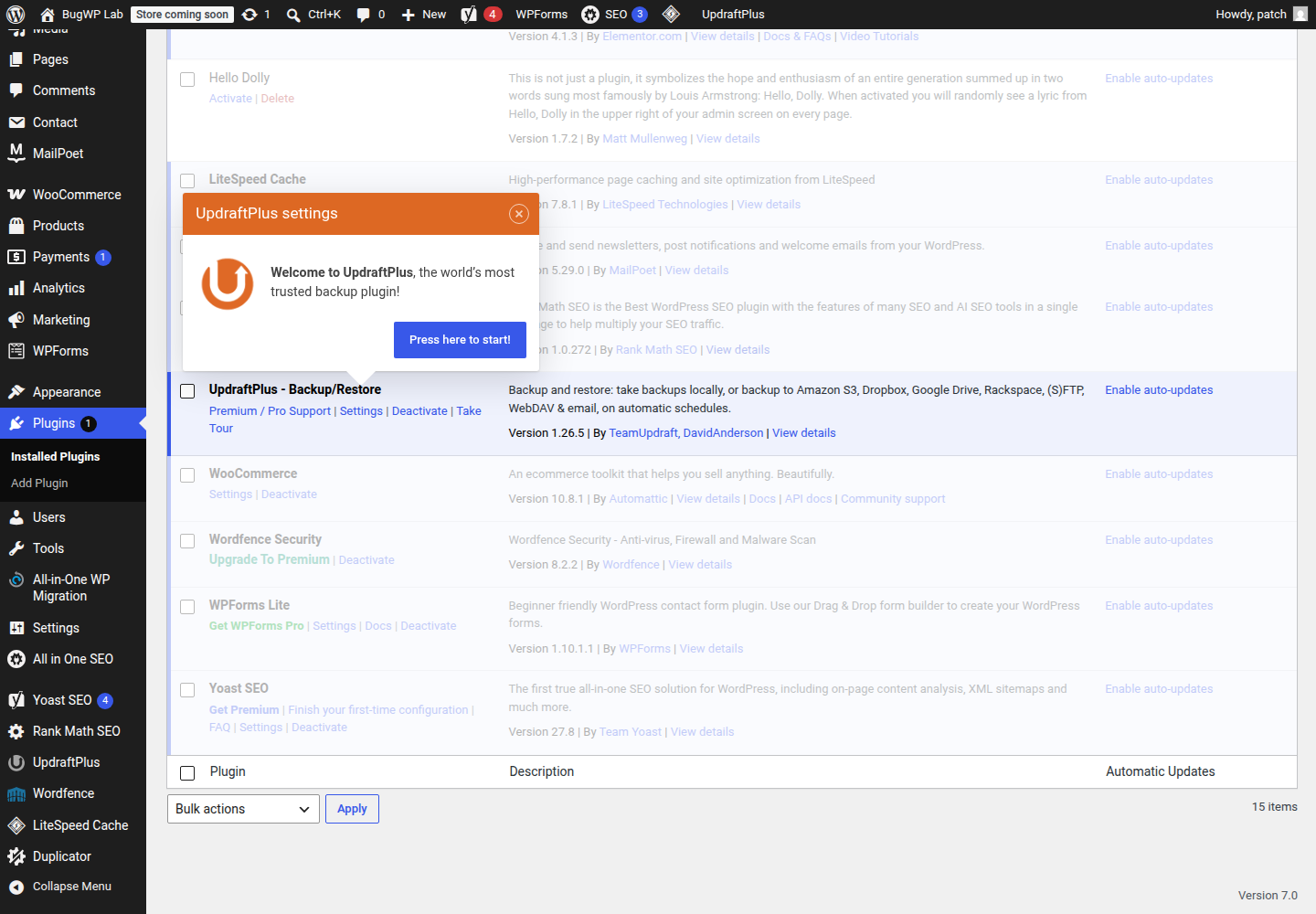
Then open Plugins > Installed Plugins and look for the Blocksy Companion Pro plugin. Blocksy’s free theme can be installed from WordPress.org, but Pro features require the premium companion plugin from CreativeThemes.
Use this order:
- Confirm the active theme is Blocksy or a Blocksy child theme.
- Confirm the Blocksy Companion Pro plugin is installed and active.
- Confirm the license is activated for this exact site.
- Confirm the feature is actually part of Blocksy Pro, not only a requested or future feature.
- Clear any cache after changing theme or plugin settings.
Decide what kind of confusion you have
If a setting is completely missing, it is usually a free-versus-Pro feature issue or the Blocksy Companion Pro plugin is inactive.
If the setting appears but does not apply on the front end, treat it as a caching, responsive setting, child-theme, or CSS override issue.
If updates fail or Pro features disappear after moving the site, staging it, or changing domains, treat it as a license activation issue. Blocksy documents license limits, developer domains, subdomains, and multisite behavior in its license utilisation guide.
Fix missing Pro features safely
First, check the official feature list. Blocksy’s Premium features page lists Pro areas such as enhanced header options, content blocks/hooks, advanced menus, custom fonts, and related premium modules.
If the feature is listed as Pro:
- Go to Plugins > Installed Plugins.
- Activate the Blocksy Companion Pro plugin if it is inactive.
- Go to the Blocksy dashboard area in wp-admin and check the license status.
- Reconnect the license if the site was migrated, cloned, or restored from backup. Use Blocksy’s license utilisation guide to check domain assignment, staging rules, and license limits.
- Save the related Blocksy setting again, then clear page cache and browser cache.
Do not reinstall the theme as the first step. Reinstalling can distract from the real issue and may create avoidable risk if the site uses a child theme or custom CSS.
Check responsive controls before assuming Pro is broken
Some Blocksy settings have separate desktop, tablet, and mobile controls. If a font size, logo size, or header setting looks correct on desktop but wrong on mobile, open the relevant Customizer panel and switch between the responsive device icons before changing global settings.
For logo sizing, check the header element itself rather than only the site identity panel. If the logo still refuses to resize independently, look for custom CSS in:
- Appearance > Customize > Additional CSS
- Your child theme stylesheet
- A performance or CSS optimization plugin
- Header-related custom code snippets
Temporarily disable only the suspected custom CSS or optimization feature, then refresh the page in a private browser window.
When the license is active but the site still behaves like free Blocksy
Work through this short decision tree:
License says inactive: reconnect it from the Blocksy account or plugin screen. If the site was moved from staging to production, check whether the license is still assigned to the old domain.
License says active, but Pro panels are missing: confirm the Blocksy Companion Pro plugin is active. A valid license alone does not add Pro controls if the premium companion plugin is disabled.
Blocksy Companion Pro is active, but one feature is missing: compare the feature against the official premium feature list. Some requested features discussed in support forums may not exist in the current product.
Feature exists, but the front end does not change: clear cache, check responsive controls, and test with custom CSS or optimization disabled.
The issue started after a theme update: update the Blocksy Companion Pro plugin too, then check whether a child theme override is affecting the same template, header, or CSS area.
Optional SSH check
If you have SSH access and WP-CLI is already available, this can confirm whether WordPress sees Blocksy as installed:
wp theme status blocksyUse this only as a status check. It does not prove that Blocksy Companion Pro is active, licensed, or expected to show a specific premium setting.
WP-CLI’s official command reference documents wp theme status under theme commands.
Roll back without losing work
Before changing theme files, disabling plugins, or reconnecting licenses on a production site, take a fresh backup from your host.
For low-risk rollback:
- Note the current Blocksy and Blocksy Companion Pro versions.
- Export or copy any custom CSS before editing it.
- Disable only one suspected plugin or optimization setting at a time.
- Re-enable it immediately if it is not related.
- If a theme update caused the issue, ask the host whether they can restore only the theme/plugin files from the previous backup, without rolling back the full database unless needed.
Avoid deleting Blocksy or the Blocksy Companion Pro plugin unless support specifically asks you to. Deleting can remove plugin files and may make diagnosis harder.
When to contact Blocksy or your host
Contact Blocksy support when the license is active, Blocksy Companion Pro is active, and an officially listed Pro feature is still missing from wp-admin.
Contact your host when updates fail, files cannot be written, cache cannot be cleared, or the site was restored/migrated and the license now points to the wrong domain.
Send support the exact symptom, the active theme name, whether a child theme is active, the Blocksy and Blocksy Companion Pro versions, and whether the problem changes when cache and custom CSS are temporarily disabled. That gives them the useful facts without exposing passwords, license keys, or private logs.