
When Astra is active but Pro features are missing, check Astra Pro Addon first. The usual cause is that the Pro plugin is not installed, is installed but inactive, the license is not connected, or the module for that feature is disabled. Confirm those before editing theme files, rolling back updates, or assuming the license key is broken.
Quick Checks
Go to Appearance > Themes and confirm Astra is installed and active. Astra itself is a theme; Astra Pro features come from the separate Astra Pro Addon plugin.
Then open Plugins > Installed Plugins and look for Astra Pro Addon.
Use this distinction first:
| What you see | What it usually means |
|---|---|
| Astra theme only | Free Astra is installed; Pro controls will not appear. |
| Astra Pro Addon installed but inactive | Activate the plugin. |
| Astra Pro Addon active but no license field | Check the Astra dashboard and account connection. |
| License active but feature missing | The related Pro module may be disabled. |
| Header, layout, or editor behavior changed after an update | Treat it as an update conflict, not just a license issue. |
Astra’s own documentation separates license activation problems from a missing license form, which is useful because the fixes are different: see Astra’s docs on license activation issues and the missing license activation form.
Fix in the Safest Order
1. Confirm the Pro plugin is installed
If you only installed the free Astra theme from WordPress.org, you do not yet have Astra Pro features. Download the Astra Pro Addon plugin from your Astra account, then install it from Plugins > Add New > Upload Plugin.
Before uploading, make a normal site backup if your host provides one. Plugin installation is usually routine, but a backup gives you a clean rollback point if the site is already unstable.
After installing it, activate Astra Pro Addon from Plugins > Installed Plugins.
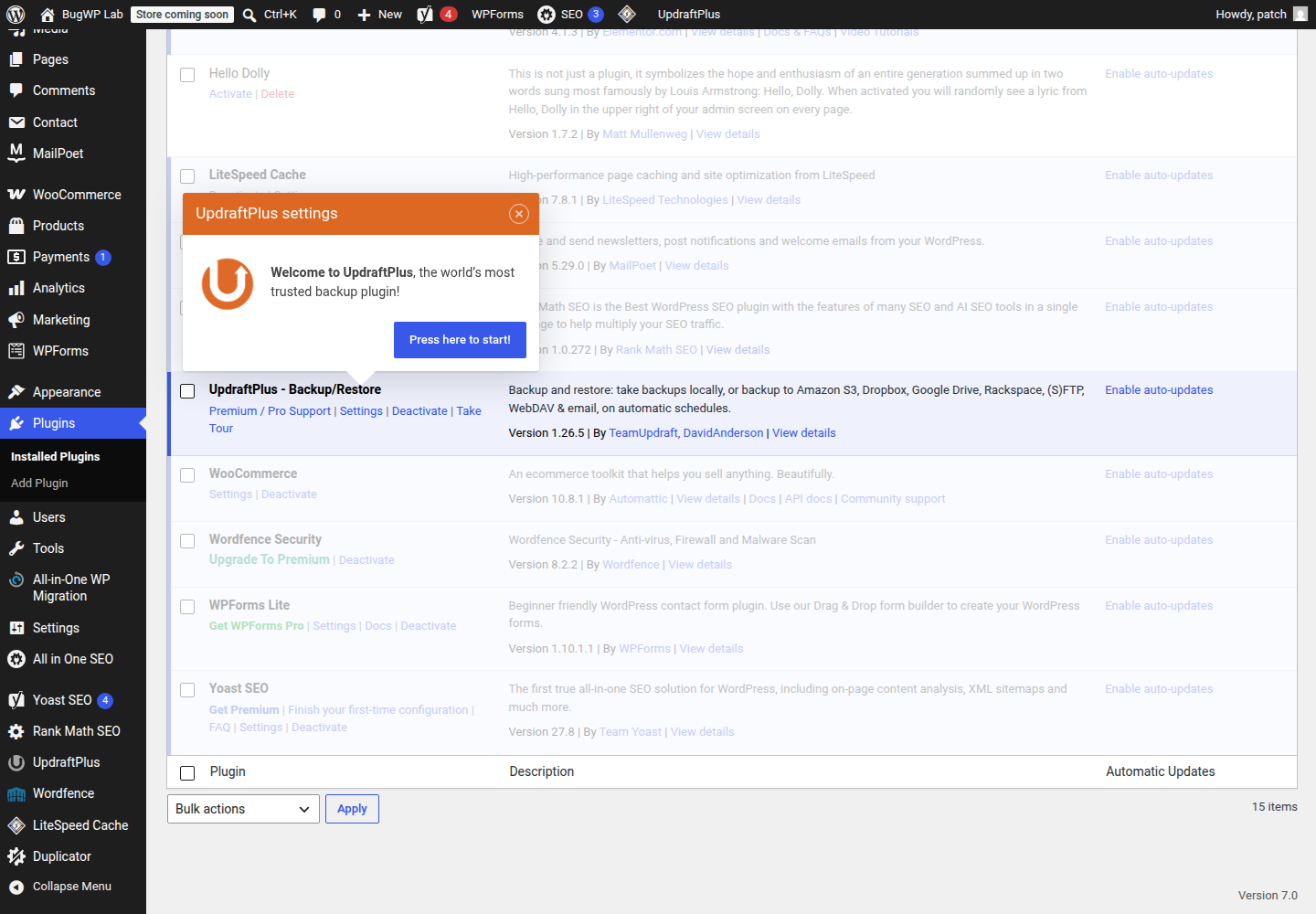
WordPress has a general walkthrough for managing plugins if the upload or activation screen is unfamiliar.
2. Activate or reconnect the license
Open the Astra dashboard in wp-admin and look for the license or account connection area. If the license field is missing, first confirm that Astra Pro Addon is active. The license form is not part of the free Astra theme alone.
If the key is rejected, copy it again from your Astra account rather than from an old email or password manager note. Extra spaces at the start or end are easy to miss.
If the license page is blank or the activation request fails, check the basics before assuming the key is wrong:
- Temporarily disable browser extensions that block scripts.
- Try a private browsing window.
- Confirm your site can make outbound HTTPS requests.
- Ask the host whether cURL and SSL certificate validation are working correctly.
Astra documents cURL and SSL-related activation failures in its license troubleshooting guide.
3. Turn on the module for the missing feature
A valid license does not mean every Pro feature is automatically visible everywhere. Many Astra Pro features are module-based.
Go to the Astra dashboard and check whether the module related to the missing control is enabled. For example, header, WooCommerce, blog layout, custom layout, or typography controls can depend on separate Pro modules.
After enabling a module, revisit the Customizer or editor screen where the option was missing. Some controls only appear in the context where they apply, such as WooCommerce settings appearing only when WooCommerce is active.
4. Clear cache only after the settings look right
Do not start with cache clearing. First confirm the theme, plugin, license, and module state.
Once those are correct, clear caches in this order:
- Page cache from your caching plugin.
- Server cache from the hosting panel.
- CDN cache, if you use Cloudflare or another CDN.
- Browser cache or a private window for a clean check.
This avoids chasing a cached front-end page while the real issue is still an inactive plugin or disabled module.
If the Problem Started After an Astra Update
A missing header, broken editor screen, or changed layout after an update may not be a license problem. Treat it as a conflict until proven otherwise.
First, check whether the site still loads on the front end and whether wp-admin is usable. If wp-admin works, update Astra, Astra Pro Addon, and WordPress core to compatible current versions from Dashboard > Updates. WordPress documents the normal update process in its guide to updating WordPress.
Then test with the smallest change set:
- Temporarily switch off caching and optimization plugins.
- Disable nonessential plugins one at a time.
- Check the same page after each change.
- Re-enable anything that does not affect the issue.
If the problem disappears only when Astra Pro Addon is disabled, collect the exact Astra theme version, Astra Pro Addon version, WordPress version, and a short description of the missing feature before contacting Astra support.
Optional SSH Confirmation
Skip this unless you already have SSH access and normally use WP-CLI. The wp-admin and Astra settings checks above are the main repair path.
To confirm whether Astra is installed:
wp theme status astraTo confirm whether the Pro plugin is installed and active:
wp plugin status astra-addonIf that plugin slug does not match your site, check the plugin list in wp-admin instead. Use SSH only to confirm what is installed, not to force changes, unless you have a current backup and know exactly which plugin or theme state you are changing.
How to Confirm It Worked
Check the fix in the same place where the confusion started.
For license problems, the Astra dashboard should show the license as active or connected.
For missing Pro controls, the relevant module should be enabled and the setting should appear in the Customizer, editor, or Astra settings screen where that feature belongs.
For front-end layout issues, open the affected page in a private window after clearing cache. Confirm the header, layout, or styling appears for logged-out visitors, not only inside the admin preview.
Rollback and Escalation
If activating Astra Pro Addon or updating Astra changes the live site unexpectedly, roll back using your host backup first. That is safer than manually deleting theme or plugin folders.
If you still have wp-admin access, you can temporarily deactivate Astra Pro Addon from Plugins > Installed Plugins. If wp-admin is unavailable, use your hosting file manager or SFTP to rename the Astra Pro Addon plugin folder, then reload wp-admin.
Contact Astra support when the license is valid in your Astra account but will not activate on the site, the license form is missing while Astra Pro Addon is active, or a Pro feature disappears after a specific Astra update. Contact your host instead when activation fails with SSL, cURL, firewall, or outbound connection errors.