
A MailPoet email delivery failure is usually caused by a paused sending service, an unverified sender domain, a stuck sending queue, or WordPress cron not running. Start by checking MailPoet’s own sending status before changing SMTP, DNS, or plugin settings.
The symptoms are often plain: newsletters sit in the queue and never leave, domain authorization emails do not arrive, or sending stops after a MailPoet or WordPress update even though the email content looks unchanged. Work through the checks below in order so you do not mask the real failure by repeatedly duplicating campaigns or switching mail services too early.
Quick Checks Before Changing Anything
Open MailPoet > Settings and check the sending method first.
If you use MailPoet Sending Service, confirm that the service is connected, your key is active, and MailPoet is not warning about plan, deliverability, or domain authentication problems. MailPoet’s own troubleshooting page lists key activation, mail quality, domain authentication, cron, and queue errors as common reasons sending stops: Sending Does Not Work.
Also check these before retrying a campaign:
- The From email uses a domain you control, not a free Gmail/Yahoo/Outlook address.
- The sender domain has the authentication records MailPoet or your mail provider asks for.
- The campaign is not paused, scheduled for the future, or stuck in the sending queue.
- Your subscriber list contains confirmed subscribers.
- WordPress cron is running, because MailPoet depends on scheduled tasks for queue processing.
If you use your host or an SMTP plugin instead of MailPoet Sending Service, keep that as the next layer of troubleshooting. First confirm MailPoet is configured correctly, then use the SMTP or mail-provider logs to see whether the message was rejected after MailPoet handed it off.
Use This Fix Order
1. Check MailPoet’s Sending Status
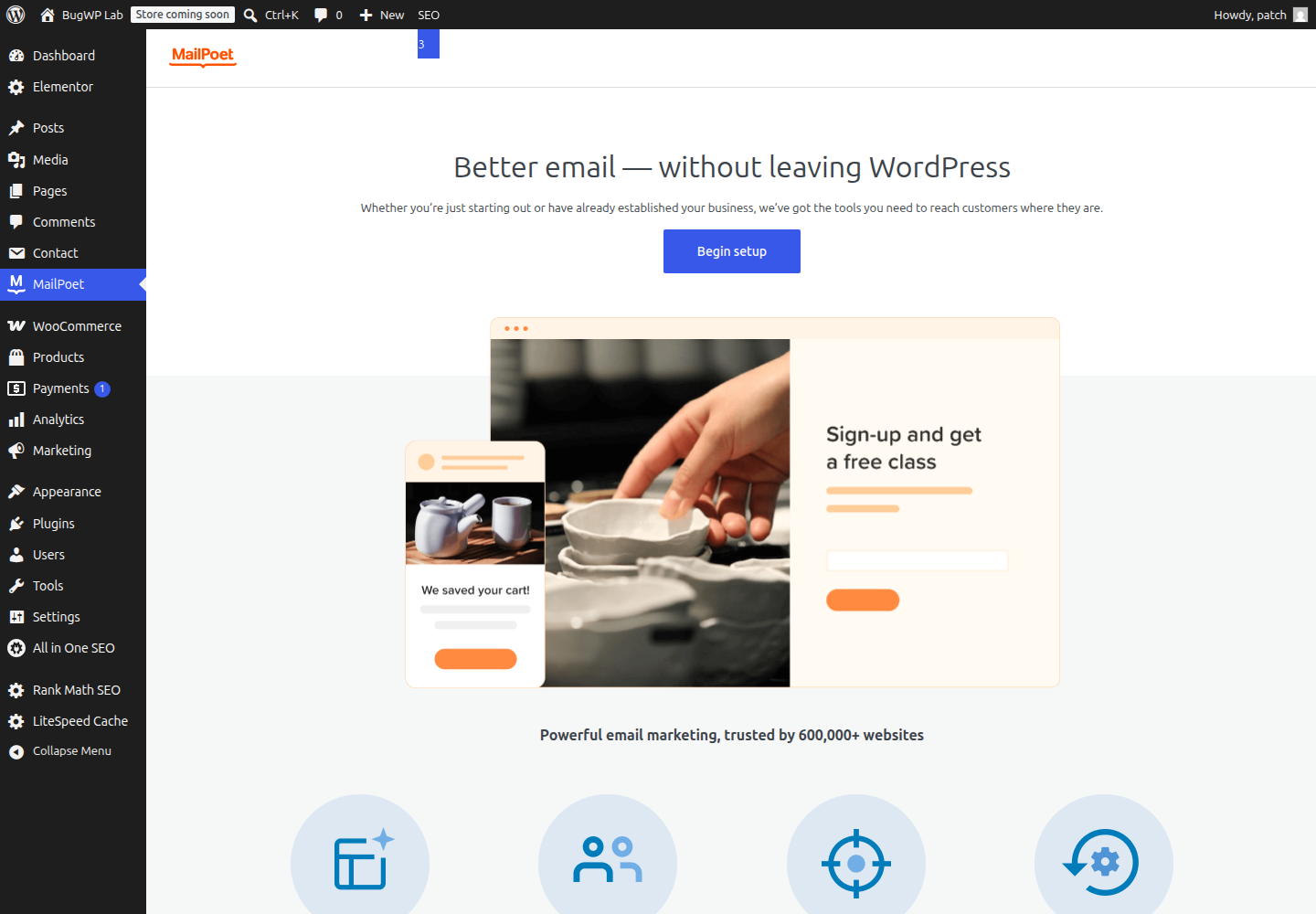
Go to MailPoet > Settings > Send With… and confirm the active sending method.
For MailPoet Sending Service, resolve any warning shown there before testing more emails. If MailPoet says the key, plan, or sending service is not active, changing campaigns will not fix delivery.
Then send a small test from MailPoet’s settings or from a draft newsletter preview. Use an address outside your domain, such as a personal mailbox, so you can tell whether delivery works beyond your own mail system.
2. Verify The From Address And Domain
A common MailPoet email delivery failure happens when the sender address does not match a verified domain. This can also block the authorization email or leave the sender stuck in a not-yet-authorized state.
Use an address such as:
Avoid sending bulk newsletters from:
That mismatch can trigger rejection, spam placement, or sender verification problems. If MailPoet asks you to authorize the domain or sender, complete that step before sending again.
For domain authentication, add the DNS records exactly as MailPoet or your mail provider gives them. DNS changes are made at the DNS host, which may be your domain registrar, hosting company, Cloudflare, or another DNS provider.
After editing DNS, wait for propagation and then recheck the authentication screen in MailPoet. Do not keep deleting and recreating records while propagation is still in progress.
3. Clear A Stuck Queue Safely
If MailPoet shows emails waiting but not sending, check MailPoet > Emails and the plugin’s status or help screens for queue or task scheduler warnings.
Do not duplicate the same campaign repeatedly to force sending. That can create multiple pending sends or confuse which version subscribers receive.
Safer order:
- Pause the affected email if it is still editable.
- Confirm whether any copies are already sending.
- Create a small test email to one internal test subscriber.
- Resume the original only after the test sends correctly.
If the queue still does not move, the problem is often cron or a background request failure rather than the email content itself.
4. Check WordPress Cron
WordPress uses a scheduled task system commonly called WP-Cron. Unlike a server cron job, it normally runs when the site receives traffic. WordPress documents this behavior in its plugin handbook section on scheduling tasks.
For low-traffic sites, password-protected staging sites, blocked loopback requests, or aggressive security rules, MailPoet’s queue may not process reliably.
Check with your host whether:
- WP-Cron is disabled in
wp-config.php. - Server cron has been configured to replace WordPress cron.
- Loopback requests to the site are blocked.
- Security, firewall, or maintenance-mode rules are blocking scheduled requests.
If your host has an email or task scheduler log, look there before changing plugins.
5. Rule Out Plugin Or Theme Conflicts
If delivery broke after an update, especially alongside editor, duplication, or admin-screen problems, test for a conflict carefully.
Start with non-destructive checks:
- Update MailPoet to the latest available version.
- Update WordPress core, then clear all site and object caches.
- Temporarily disable only plugins that affect email, cron, security, caching, or the block editor.
- Switch to a default WordPress theme only if the issue appears in the editor or campaign builder, not just delivery.
Take a backup first if you plan to update multiple plugins or change themes. If the site is busy, do the conflict test on staging.
If disabling one plugin makes MailPoet send again, do not leave the site half-broken. Re-enable the plugin, document the exact failure, and contact that plugin’s support or MailPoet with the conflict details.
If MailPoet Sends Through SMTP
Use this section after you have checked MailPoet settings, sender authorization, domain authentication, and cron. When MailPoet sends through your host or an SMTP plugin, MailPoet may create the message successfully while the mail server rejects it later.
Check the SMTP plugin or provider log for:
- Authentication failure
- Sender address rejected
- Daily or hourly sending limit reached
- Blocked SMTP port
- SPF, DKIM, or DMARC alignment failure
- Recipient rejected or mailbox unavailable
If regular WordPress password reset emails also fail, the problem is broader than MailPoet. Fix WordPress mail delivery or SMTP first, then retest MailPoet.
If password reset emails work but MailPoet campaigns fail, go back to MailPoet’s sending method, sender address, queue, and cron checks before replacing the SMTP plugin. A new SMTP plugin will not fix a paused MailPoet campaign or an unauthorized sender domain.
How To Confirm It Worked
Use a small test before sending to a full list.
Send one preview or test newsletter to:
- One mailbox on your own domain
- One external mailbox, such as Gmail or Outlook
- One address that previously failed, if safe to use
Then check:
- MailPoet no longer shows queue or sending-service warnings.
- The test message arrives, or the mail provider log shows it was accepted.
- The message is not only delivered to spam.
- Scheduled newsletters move from pending to sent without manual retries.
Delivery to spam is a different problem from failure to send. If MailPoet shows sent and the provider accepted the message, focus next on domain authentication, list quality, and sender reputation.
Rollback And Escalation
If the failure started after a plugin update, restore from the backup only if the update caused a broader site problem. For a sending-only failure, it is usually safer to pause campaigns, fix authentication or cron, and send a small test.
Contact MailPoet support when MailPoet Sending Service is connected but MailPoet still shows plan, key, deliverability, queue, or domain authorization errors.
Contact your host when cron, loopback requests, PHP errors, or server mail logs point outside MailPoet.
Contact your DNS provider or registrar when MailPoet cannot verify domain records that appear correct in your DNS panel.
Do not send the same campaign repeatedly while troubleshooting. Pause, test with a small audience, confirm the queue is moving, then resume the original send.