
A WooCommerce email delivery failure can happen before or after WordPress hands the message to a mail server. First check whether the order triggered the notification. Then use an email log to separate a WooCommerce generation problem from a transport or recipient-side delivery problem.
Check whether the order triggered an email
Open WooCommerce > Orders, select an affected order, and review its status and order notes.
WooCommerce sends different notifications for different events. For example, the customer processing-order email is normally triggered after payment when the order reaches Processing. An order left at Pending payment may indicate that the payment gateway never confirmed payment.
If several affected orders use the same gateway:
- Check the gateway's WooCommerce logs and account dashboard.
- Confirm that webhook or callback requests are reaching the store.
- Compare the order notes with a successful order.
- Avoid manually changing every order status until the payment issue is understood.
For one affected order, use the Order actions menu to resend the appropriate notification. This attempts to trigger the email again, but it does not prove that WooCommerce generated the message or repair a broken payment callback. Check the email log after resending it.
Verify the WooCommerce email settings
Go to WooCommerce > Settings > Emails and open the missing notification. WooCommerce's email settings documentation explains the available notifications and their triggers.
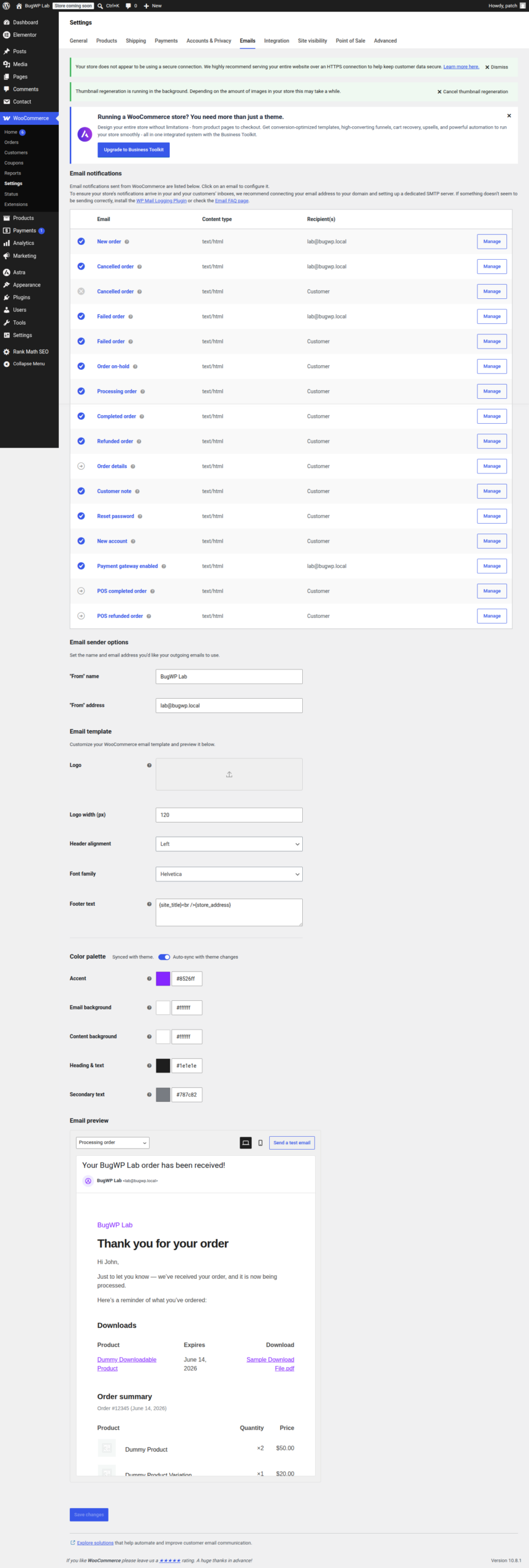
Check that:
- The notification is enabled.
- The administrator recipient address is correct.
- The sender name and address contain no typing errors.
- The customer's billing email address is correct.
- The email type is set to HTML, plain text, or multipart as intended.
Use a sender address on the store's own domain, such as [email protected]. An unrelated sender domain can cause authentication failures or make the message appear spoofed.
WooCommerce provides further guidance in its email troubleshooting documentation.
Separate generation from delivery
Install an email logging plugin temporarily, then resend a WooCommerce notification from an order.
If the message appears in the log but never arrives, investigate the mail transport, sender authentication, spam filtering, and recipient server.
If no entry appears, possible causes include:
- The order did not trigger the notification.
- WooCommerce or another plugin stopped the message before it reached WordPress's mail function.
- The logging plugin did not capture the message because of its configuration or compatibility with the sending method.
A successful call to WordPress's wp_mail() function means only that the request was accepted for processing. It does not prove that the recipient received the message.
Also check:
- The recipient's spam or junk folder.
- Mailbox filters and forwarding rules.
- Whether the mailbox exists and has free storage.
- Bounce messages sent to the store's return address.
- Quarantine and delivery logs in the domain's email service.
Test with addresses at two different providers. Failure at one provider may point to provider-specific filtering. Failure everywhere is more likely to involve the site or sending service.
Configure authenticated email delivery
Default PHP mail delivery is often unreliable on web hosting. Configure WordPress to send through an authenticated SMTP server or transactional email provider.
Use the official plugin or setup instructions supplied by the provider. You will normally need:
- An SMTP host or provider API.
- A port and encryption method.
- Authentication credentials.
- A verified sender address or domain.
- DNS records such as SPF and DKIM.
Do not guess the port or encryption settings. Use the provider's documented values. Store credentials only in the provider's official plugin or another trusted mail plugin, and never post them in support requests or logs.
After setup, send the plugin's test email and then resend a real WooCommerce order notification. A generic test can succeed while a WooCommerce trigger, template, or recipient setting remains broken.
Keep the previous mail settings until the WooCommerce notification succeeds. If the change causes errors, restore those settings and remove credentials from any plugin you no longer plan to use.
Check for template problems
An outdated email template override can break rendering or omit order data after WooCommerce changes.
Open WooCommerce > Status and review the template section for overridden or outdated files. WooCommerce documents how template overrides are structured and why custom copies require maintenance after updates.
Email overrides in a classic or child theme are commonly stored in:
wp-content/themes/your-theme/woocommerce/emails/Back up the theme before changing these files. Temporarily rename the relevant override so WooCommerce falls back to its bundled template, then resend the notification.
If that works, update the override by comparing it with the template bundled with the installed WooCommerce version. Do not edit files inside the WooCommerce plugin permanently because an update will replace those changes.
Custom fields require separate attention. An email can arrive without custom order data if the customization uses an outdated hook or is incompatible with the current email template system.
Rule out plugin and theme conflicts
Perform this test on a staging copy when possible:
- Back up the database and files.
- Switch temporarily to a default WordPress theme.
- Leave WooCommerce and the payment gateway active.
- Disable email customizers, checkout extensions, automation plugins, and custom code.
- Create a low-value test order and complete the payment flow.
- Re-enable components one at a time until the failure returns.
Changing the theme alone does not identify a mail transport problem, but it can expose broken template overrides or custom hooks. Prioritize plugins that modify checkout status, order creation, email templates, or outgoing mail.
Inspect logs and scheduled actions
Open WooCommerce > Status > Logs and inspect recent fatal-error, payment-gateway, and mail-provider entries around the failed order time. WooCommerce's guide to finding PHP error logs explains the relevant log locations.
Do not share complete logs publicly without removing customer details, email addresses, payment references, credentials, and server paths.
Then open WooCommerce > Status > Scheduled Actions. Look for failed or overdue actions associated with the affected extension. WooCommerce documents how to review scheduled actions, but a failed action does not by itself prove that it caused the missing email.
Before rerunning or deleting an action, read its hook name and identify the plugin that created it. Repeated failures usually require fixing the underlying exception or service connection first.
Test the complete order flow
After making a change, place a new test order using the same payment method and checkout path that failed. Confirm all three parts of the process:
- The order reaches the correct status.
- The intended WooCommerce notification appears in the email log.
- The message arrives and passes the recipient provider's authentication checks.
Testing only from an SMTP plugin skips the order-status trigger and WooCommerce template. Resending an old order can skip the payment callback. A new checkout test checks the complete path.